How to Transfer Files From PC to PC on Windows

Use OneDrive for files already synced with the same Microsoft account. Use a USB drive for the largest offline transfers. Use a wired network or transfer cable when you want speed without cloud upload time. For an old PC to a new PC, copy files first and reinstall apps separately unless you are using migration software. Bad transfers lose files, duplicate folders, or break file paths. This guide shows the best Windows-to-Windows method for each case, plus exact steps and fixes.
Which transfer method fits your situation?
The right path depends on four things: whether both PCs use the same Microsoft account, whether you have internet, how large the files are, and whether you need files only or a fuller move. Microsoft documents Windows 11 transfer options through OneDrive and backup-related setup steps, but that path depends on OneDrive storage and account setup. (Microsoft)
If you only need a few folders, manual copy is fine. If you need a large batch, wired local transfer or external storage is usually better. If you want files, settings, and some app data, Windows Backup or third-party migration software may fit better than copy and paste.
PC transfer methods matrix
| Method | Internet required | Fastest for large files | Best for full-PC move | Setup difficulty | Cost | Common failure point |
|---|---|---|---|---|---|---|
| Windows Backup | Yes, for cloud sync and restore | No | Best for files and supported settings during setup | Low | Can require more OneDrive storage | Same Microsoft account not used, or storage runs out |
| OneDrive sync | Yes | No | No | Low | Depends on storage plan | Files never synced, or storage limit blocks upload |
| Wi‑Fi/LAN file sharing | No | Sometimes, but speed depends on network quality | No | Medium | Free | Network discovery, permissions, or firewall blocks access |
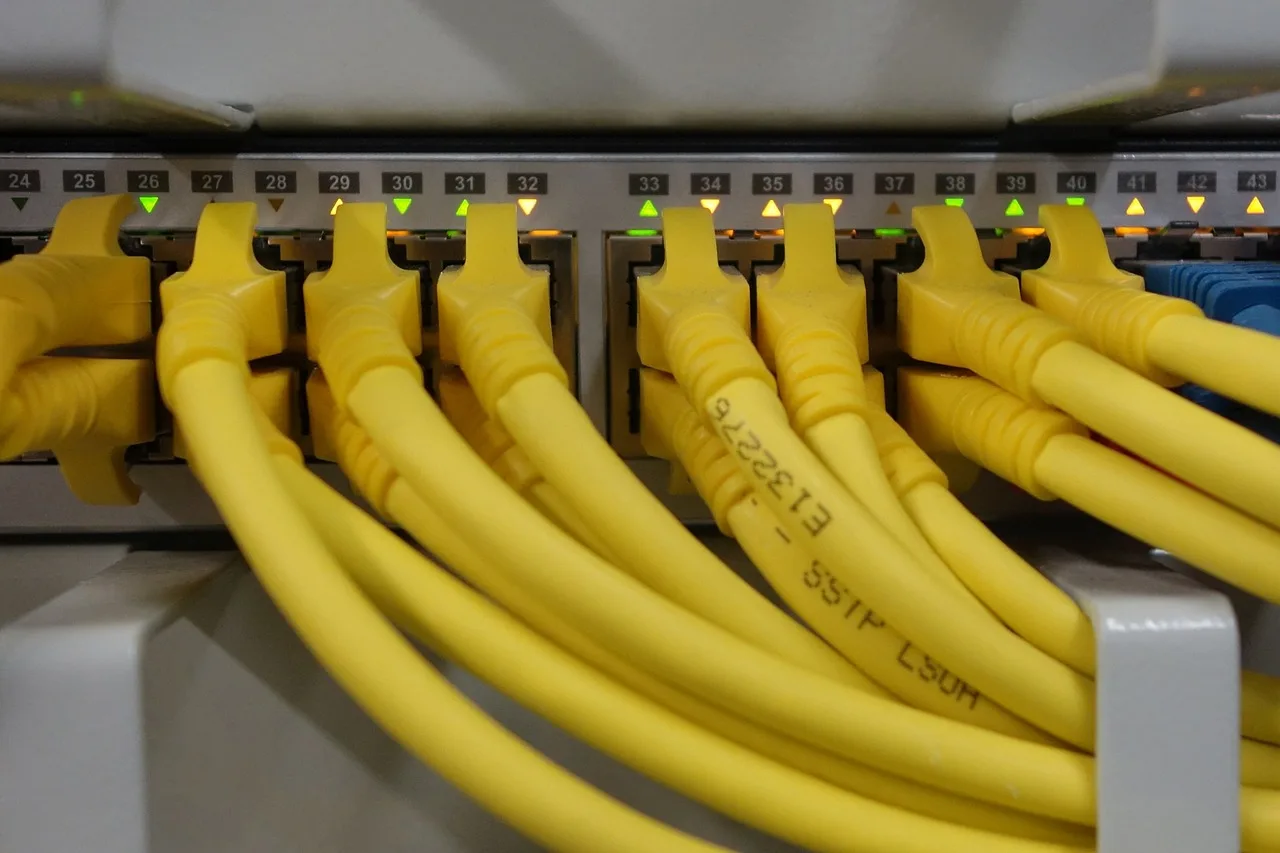
| Ethernet connection | No | Yes, usually faster than wireless | No | Medium | Usually low if you already have the cable | Adapter, IP, or sharing setup mismatch |
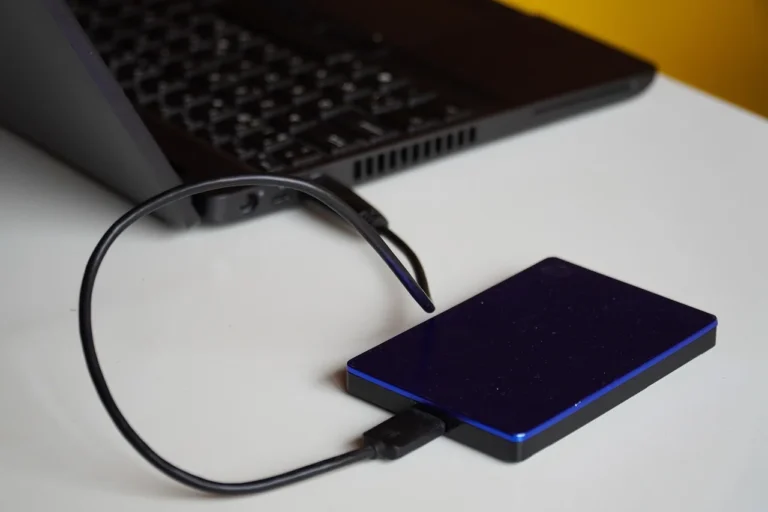
| USB flash drive or external hard drive | No | Yes for very large folders | No | Low | Depends on drive size | Drive fills up, or files are skipped during copy |
| USB transfer cable | No | Often yes | Sometimes, if the software supports more than files | Medium | Requires the cable and often software | Driver or app not installed on both PCs |
| PC transfer software | Sometimes | Depends on the tool | Yes, for files, settings, apps, and profiles | Medium to high | Often paid | Licensing limits, install issues, or unsupported app data |
Use this when: pick Windows Backup if both PCs use the same Microsoft account and you want a setup-time restore; use OneDrive for files already in the cloud; use Ethernet or a USB cable when speed matters; use a USB drive for offline bulk copying; use migration software only when you need more than file transfer.
📊 Microsoft says Windows 11 data transfer is the simplest and most trusted way to transfer data to a new PC. Source: Microsoft.
How do you transfer files from PC to PC on Windows 11?
On Windows 11, the built-in path is Windows Backup, which is commonly tied to a Microsoft account and can restore files and supported settings during setup. Microsoft says this works best when both PCs use the same Microsoft account, and the amount you can move depends on available OneDrive storage.
Use Windows Backup with the same Microsoft account
-
Sign in on the old PC.
Use the Microsoft account you plan to use on the new PC. That keeps backup data linked to the same cloud identity, which is required for the restore flow to line up during setup. -
Open backup settings.
Go to Settings > Accounts > Windows backup on the old PC, then choose what to back up. This is the built-in Windows 11 backup and restore experience, and it focuses on files and supported settings that are tied to your Microsoft account and OneDrive. -
Check OneDrive storage.
Make sure the account has room for the files you want to move. Microsoft notes that storage space can limit what transfers, so large folders may need pruning or a different method. -
Set up the new PC.
Sign in with the same Microsoft account during Windows setup and choose the restore option when it appears. Restore the files and supported settings that Windows Backup offers, then let the desktop finish syncing before you open anything important.
Windows Backup is best for a new-PC setup flow, not for every file situation. It can restore files, settings, preferences, and app list/pins, but it does not install desktop apps themselves. Supported settings can come across, but many apps still need reinstalling or sign-in again after restore.
What Windows Backup can and cannot move
Use Windows Backup when you want a guided restore during setup and both PCs share the same Microsoft account. It is weaker when you need a local-only move, have a small OneDrive quota, or need a full app-by-app clone. Supported settings can come across, but many apps still need reinstalling or sign-in again after restore.
Picture about a 700 GB photo archive on an older desktop with a small OneDrive plan. Windows Backup is not the right first move there. A USB drive or Ethernet copy will be safer because the cloud limit and upload time can block the transfer before it starts.
How do you transfer files from PC to PC on Windows 10?
Windows 10 is commonly described as not having the same built-in backup-and-restore flow as Windows 11, so practical choices are often OneDrive, same-network file sharing, or offline copying to USB storage. For files already in the cloud, OneDrive is easiest. For local folders, a LAN or cable transfer is usually faster.
Use OneDrive for cloud-synced files
-
Confirm the files are synced.
Check that the files you want are already in OneDrive on the old PC. This works best for documents, desktop files, and photos that already uploaded, because you are restoring what is already in the cloud. -
Sign in on the new PC.
Use the same Microsoft account on Windows 10 or Windows 11. The file list appears through the account, and the storage limit still decides how much can come down. -
Let sync finish.
Wait for the cloud icons to clear before you close the laptop or start deleting anything on the old PC. If sync pauses, the new PC may miss recent changes.
Use Wi‑Fi or LAN file sharing on the same network
-
Connect both PCs.
Put both Windows PCs on the same home or office network. HP notes that network transfer works well in that case, and it is free if you already have the network. -
Share the source folder.
On the old PC, set the network profile to Private, turn on Network discovery and File and printer sharing in Settings > Network & internet > Advanced network settings > Advanced sharing settings, and check whether Password-protected sharing is on or off before you share the folder. Then right-click the folder, open sharing options, and give the new PC permission to read or copy it. Use a folder-level share instead of exposing the whole drive. -
Open the shared path.
On the new PC, open File Explorer and type the network path or browse to the shared folder. Copy the files you need, then verify the destination before you remove the original.
Use USB storage for offline moves
-
Choose the right drive.
A common rule of thumb is to pick a USB flash drive for smaller sets or an external hard drive for large folders. Microsoft says external hard drives or USB drives are effective for large folders and offline transfers. -
Copy from the old PC.
Drag the files or folders to the drive, or use copy and paste. Microsoft says manual copy and paste is practical for small, specific file sets. -
Copy to the new PC.
Attach the drive to the new PC and copy the files into the target folder. Check names and folder structure, and open a few large files to confirm they are readable before you delete anything from the source machine.
How do you share files from PC to PC on Windows 10? Use File Explorer sharing or a mapped network path on the same network. Keep sharing limited to the folders you need, and turn it off after the transfer so the new PC is not left exposed on the network.
How do you transfer large files from PC to PC?
For large folders, use the method that avoids the biggest bottleneck. A wired Ethernet connection is usually faster and steadier than Wi‑Fi. If the files are very large and local only, an external drive is often the safest choice because it does not depend on signal quality or cloud space.
Use Ethernet for a wired network transfer
-
Connect both PCs by cable.
Use Ethernet on both computers and place them on the same local network for normal file sharing. If you are using a direct PC-to-PC cable link, expect to set up sharing manually because it may not work like a regular network with a router. -
Enable sharing.
Turn on network discovery and file sharing, then share the folder you want to move. If discovery is off, the second PC may not see the source machine at all. -
Copy in batches.
Move large folders in chunks instead of one huge batch if the network is unstable. That makes it easier to spot a failed copy and restart only the missing pieces.
Use a USB transfer cable when you want a direct link
-
Install the cable software.
Many USB transfer cables need software on both computers, and some only work with specific hardware or bundled transfer tools. Install it first so the PCs can recognize the link and move data without guessing at the connection. -
Attach both ends.
Connect the cable to both PCs and open the transfer tool. A dedicated cable can be faster than a basic external drive, especially for direct PC-to-PC copying. -
Select the data set.
Choose the folders or profiles you want to move and start the transfer. If the tool supports only files, plan to reinstall apps separately.
Suppose you need to move about a 120 GB video folder from one desktop to another and the room has weak Wi‑Fi. Ethernet or an external drive is the safer route. Wireless may work, but the network quality decides whether the copy finishes in one pass or stalls halfway through.
What if you need apps, settings, or profiles too?
Files-only transfer and full migration are not the same task. Windows Backup can bring over files and supported settings during setup, and some third-party tools can move files, settings, apps, and profiles. Even then, many programs still need a reinstall, a license sign-in, or a data relink.
When PC transfer software makes sense
Use migration software when you want more control than Windows Backup gives you and you are willing to install a tool on both PCs. These tools can move more than documents, but pricing and feature limits vary.
Keep the scope narrow. Move what matters, then reinstall the rest. That reduces the risk of dragging old drivers, broken shortcuts, or stale profile data onto the new machine.
What still needs reinstalling or relinking
Many apps will not move cleanly no matter which method you use. Some need their installer, some need a sign-in, and some store data in folders that are not part of the file transfer. After the copy, open the key apps first and check whether they need activation, account access, or a fresh sync.
How do you fix common transfer problems?
Most transfer failures come from permissions, network discovery, firewall rules, account mismatch, or cloud storage limits. Start by checking the weakest link in the method you chose. That usually fixes the problem faster than trying a second copy right away.
Permissions and folder access errors
If the new PC cannot open a shared folder, check the share permission and the folder’s security tab. Give the transfer account read access, or full control only if you need to write back to the source folder. If the destination denies access, copy to a local folder such as Documents first and move it later.
Network discovery and firewall checks
If the PCs cannot see each other on Wi‑Fi or Ethernet, turn on network discovery and file sharing on both machines. Then check the firewall rules that allow file sharing on private networks. A public network profile can block discovery even when the cable is connected.
Microsoft account and OneDrive storage issues
If Windows Backup does not offer the expected restore, confirm that both PCs use the same Microsoft account. Then check the available OneDrive storage. Microsoft notes that the method depends on available OneDrive storage, so a full quota can stop the restore even when the account is correct.
A common first-timer mistake is to start a cloud restore, then discover the new PC is signed into a different Microsoft account. The result is empty folders or a partial restore. Match the account first, then run the backup flow.
Frequently asked questions
How can I transfer files from PC to PC wirelessly?
Use Wi‑Fi file sharing on the same network. Turn on network discovery, share the folder on the source PC, and open that shared path from the target PC. Wireless works, but speed depends on signal quality and traffic on the network, so large transfers can take longer than Ethernet.
What is the best way to transfer files from old PC to new PC?
If you want files plus some settings, start with Windows Backup on Windows 11 or a migration tool that fits your budget and app list. If you only need files, copy them to an external drive or use Ethernet. Reinstall apps after the file move unless your software tool clearly supports them.
Can I transfer files from PC to PC without internet?
Yes. Use a USB flash drive, external hard drive, Ethernet, Wi‑Fi/LAN sharing on the same local network, or a USB transfer cable. Offline methods are often better for large folders because they do not depend on upload time or cloud storage limits.
What is faster for file transfer on Windows: Wi‑Fi, Ethernet, or USB?
Ethernet is usually the faster and steadier network choice, especially for large copies. USB storage is often best when you want a simple offline move and the files are huge. Wi‑Fi is the most convenient, but speed changes with signal strength, distance, and network load.