
How to Transfer Large Files Online Without Login
Use a no-login transfer service like Smash, Wormhole, or Send Anywhere’s guest mode for files up to their limit; for anything larger, switch to an account-based cloud link or split the archive. Pick the wrong tool and you hit size caps, slow uploads, or downloads that force a signup anyway. This guide compares no-login services, account-based options, and the fastest way to send a file safely.
Fastest no-login path for large files
The fastest path is usually upload first, then share a link or email. The recipient opens a download link instead of a mailbox attachment, and the download can start without a matching account. For a file around 10 GB, the real question is whether the service accepts that size on the free tier or only after you sign in.
Upload first, then share a link or email
In a shared-link workflow, you upload the file, the service creates a download link or email delivery, and the recipient downloads afterward. That is the cleanest no-login pattern because the sender controls the upload once, then sends the link by email or text. The recipient usually only needs the link.
Shared links work better than email delivery when you need to send the same file to more than one person, or when you may need to resend the link later. Email delivery is easier for a one-time handoff, but the link itself still matters, because the download usually happens through the link rather than the message body.
When a no-login tool is not enough
A no-login tool stops being enough when the file is bigger than the service limit, the upload fails halfway, or the link expires before the recipient opens it. In those cases, an account-based cloud link can be more practical, especially if the file must stay available for days rather than hours. The tradeoff is extra friction.
Which service fits your file size?
File size limit is the first filter, because it decides whether a service can carry the transfer at all. A 10 GB file sits in the middle of the pack: many free options are too small, some paid plans handle it, and a few no-login tools are built for larger transfers. If the limit is wrong, nothing else matters.
Free limits versus paid limits
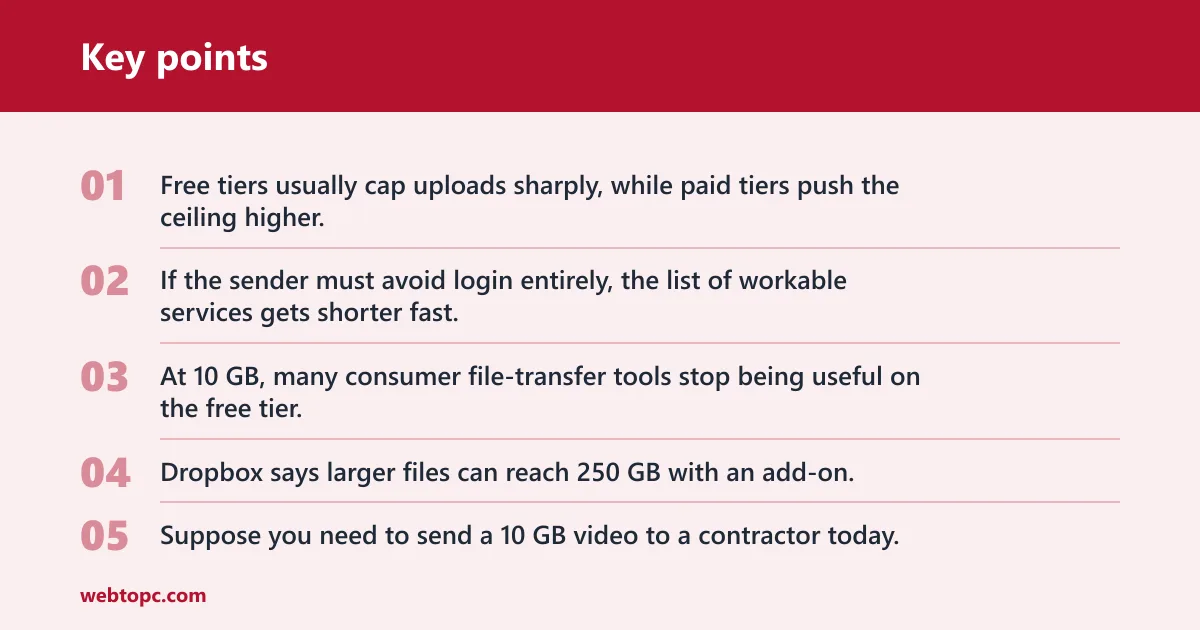
Free tiers usually cap uploads sharply, while paid tiers push the ceiling higher. That is why “free” needs a second question: free for the sender, free for the recipient, or free only during a trial. If the sender must avoid login entirely, the list of workable services gets shorter fast.
What changes at 10 GB
At 10 GB, many consumer file-transfer tools stop being useful on the free tier. Dropbox Transfer is one example of a service with clear plan limits: Dropbox Basic allows transfers up to 2 GB, Plus allows transfers up to 50 GB, and Standard and Advanced allow transfers up to 100 GB. Dropbox says larger files can reach 250 GB with an add-on.
Suppose you need to send a 10 GB video to a contractor today. If the free tier only allows 2 GB, you either move up a plan, switch services, or split the file into parts. Splitting can work, but only when the recipient can reassemble the archive without confusion.
When file splitting is the better fallback
Split the file only when the service cannot take the full archive and the recipient can handle multiple parts. This is more practical for a single large archive than for loose media files, because part files are easier to track and verify. Use clear names like Part 1, Part 2, and so on.
| File size band | Login required | Free limit | Recipient account required | Password protection | Expiry | Recommended use case |
|---|---|---|---|---|---|---|
| Up to 2 GB | Sometimes no for sender, depending on service | Dropbox Basic allows transfers up to 2 GB | No for Dropbox Transfer | Yes on Dropbox transfers | Yes on shared links | Quick document or photo bundle |
| 2 GB to 50 GB | Often yes for sender on account-based tools | Plan dependent | No for Dropbox Transfer | Yes on Dropbox transfers | Yes on shared links | Project folder or large video |
| 10 GB | Usually no-login only on tools built for large transfers | Varies by service | No for link-based delivery | Varies by service | Varies by service | Single large send where free plan can handle it |
| Above 50 GB | Often requires an account or paid plan | Usually above most free limits | No for link-based delivery | Varies by service | Often available | Large archives, datasets, or long video exports |
| Very large transfers | Usually depends on paid or specialty service | Smash says no size limit and free to use | No for link-based delivery | Varies by service | Depends on service | Large files where sender wants a link without a recipient account |
Dropbox Transfer without recipient login
Dropbox Transfer fits when you want link-based delivery and the recipient should not need a Dropbox account. The same source says Transfer can send files up to 100 GB, and larger files can reach 250 GB with an add-on. It can deliver files by email or a download link, and Dropbox also lets users confirm delivery with download notifications.
Free plan limit and size ceiling
Dropbox Basic allows transfers up to 2 GB, which is enough for smaller media bundles and documents. For bigger transfers, Dropbox Plus allows transfers up to 50 GB, and Dropbox Standard and Advanced allow transfers up to 100 GB. That plan difference is the main reason Dropbox Transfer is not a pure no-login free tool for large sends.
Link or email delivery
Dropbox Transfer can send files by email or a download link. That matters because some recipients prefer a direct link in chat or text, while others want a message in their inbox. In both cases, the recipient does not need a Dropbox account to download the file.
-
Upload the file.
Choose Transfer, add the file, and wait for the upload to complete before sending anything. If the file is near the plan ceiling, confirm the size first so you do not lose time on a transfer that cannot finish.
-
Create delivery access.
Generate either a shared link or an email delivery. If the recipient wants a quick handoff, the link is usually the easiest path because it can also be pasted into text or chat.
-
Add controls.
Use password protection and an expiration date if the file should not stay open indefinitely. Those controls limit access after the first download window passes.
What the recipient needs to download
The recipient needs the link or the email, not a Dropbox login. That lowers friction for outside clients, one-off collaborators, and people who should not create another account. If the recipient delays the download too long, the expiration date can close the transfer before they open it.
Smash for large transfers
Smash is aimed at large-file sharing without login friction. Smash describes itself as a way to share large files without stress, no size limit, securely, and for free. It also says files are retained only until they are downloaded, which makes it a practical option when the sender wants temporary delivery rather than long-term storage.
No-size-limit claim and what that means
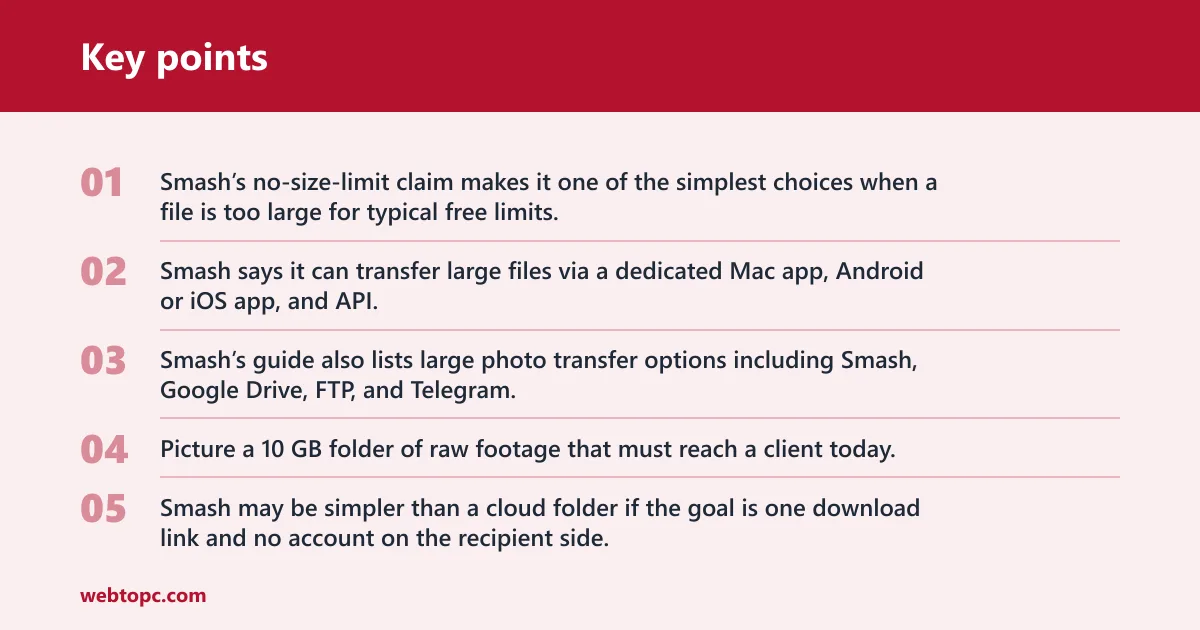
Smash’s no-size-limit claim makes it one of the simplest choices when a file is too large for typical free limits. The practical meaning is straightforward: the service is positioned for large transfer jobs where the sender wants a link and the recipient should not create an account. That does not remove network or upload constraints, so a large upload can still fail if the connection breaks.
Link sharing across devices
The same source says it can transfer large files via a dedicated Mac app, Android or iOS app, and API. It also supports link sharing, which matters when the sender wants to move the same file between devices or pass it to a recipient on desktop or mobile. Smash’s guide also lists large photo transfer options including Smash, Google Drive, FTP, and Telegram.
Picture a 10 GB folder of raw footage that must reach a client today. Smash may be simpler than a cloud folder if the goal is one download link and no account on the recipient side. If the transfer must stay available for repeated access, an account-based cloud link may be a better fit.
How do you keep a no-login link private?
Password protection and expiration dates are the main controls for limiting access to shared files. They help when a link must be sent outside a team but should not remain open forever. They are useful for sensitive files, but they are not the same as full security review or end-to-end encryption guidance.
Password protection
Password protection restricts downloads to people who know the code. Dropbox offers password protection for transfers, which gives the sender a second check beyond the link itself. Use it when the file is sensitive enough that the link should not be enough on its own.
Expiration dates
An expiration date limits how long a transfer link remains usable. That helps when the recipient should download the file soon, and it reduces the chance of an old link staying open longer than needed. Combine expiry with a password when the file should be time-limited and access-controlled.
-
Set a short expiry.
Pick a deadline that matches the recipient’s response time, such as same day or next day for urgent sends. Shorter expiry reduces the risk of stale access.
-
Add a password.
Use a password when the file contains private work, client material, or internal documents. Share the password through a different channel from the link when possible.
-
Confirm the transfer state.
Check whether the service offers download notifications or status confirmation. If the recipient delays the download until after expiry, resend a fresh link rather than assuming the first one still works.
Can recipients download without an account?
Yes, recipients can often download without having the same account when the sender uses a shared link or email delivery. That is the core convenience of no-login transfer: the sender may still need an account on some services, but the recipient usually does not. That difference matters more than the marketing label.
Email and text delivery
Shared links can be sent by email or text, which lets you choose the channel the recipient is most likely to open. Text is often better for quick access on mobile, while email is easier for formal handoffs. In both cases, the link is what matters, not a matching account.
Common download friction to expect
A common first-timer mistake is waiting too long before downloading a link sent for a time-limited transfer. If the recipient delays the download and the link expires, the file may need to be uploaded again. Another friction point is a partial upload that never finished, which creates a broken link or an incomplete file.
What to do when the file is too large or fails to upload
If the file is too large, switch to a service that accepts the full size or split the archive. If the upload fails, restart the transfer only after confirming the connection is stable and the file still matches the service limit. The goal is to avoid sending a broken link or a half-finished file.
-
Check the size first.
Compare the file against the service ceiling before upload. That prevents wasted time on a transfer that will never finish on the current plan.
-
Restart interrupted uploads.
If the upload stops, begin again from the service’s resume point if available, or from the start if not. A stable connection matters more for very large files because even a late interruption can force a full retry.
-
Switch tactics early.
If the service cannot take the file, move to an account-based cloud link or split the archive into parts. Do not keep retrying a no-login tool that is clearly below the needed size threshold.
Frequently asked questions
How do I transfer large files online without login?
Use an upload-then-share service that creates a download link or sends the file by email, then send that link to the recipient. Smash and Dropbox Transfer both support link-based delivery, and Dropbox Transfer does not require the recipient to have a Dropbox account. Size limit still decides whether the free tier will work.
How can I send a 10GB file online for free?
Check the free limit before uploading, because many services cap free transfers below 10 GB. If the free tier cannot accept the file, use a service positioned for larger sends or split the file into parts. A send around 10 GB is often where plan limits start to matter most.
What sites let me share large files without registration?
Look for shared-link services that allow guest delivery or a no-login sender flow. Smash is positioned for large file transfer with no size limit and free use, while Dropbox Transfer lets recipients download without a Dropbox account. The exact sender login rule still depends on the service and plan.
Are there file size limits for free large-file transfer services?
Yes. Free large-file transfer services usually set a cap, and that cap can be far below a 10 GB file. Dropbox Basic allows transfers up to 2 GB, which is why “free” should always be checked against the file’s actual size before you upload.
Can recipients download without having the same account?
Often yes, if the sender uses a shared link or email delivery instead of an account-only folder. Dropbox Transfer allows delivery to people without a Dropbox account, and the recipient only needs the link. That is the main reason shared links reduce friction.
What is the easiest way to share large files with a download link?
Upload the file to a service that generates a download link, then send that link by email or text. That keeps the recipient out of the signup flow and lets you add password protection or an expiration date when the file should not stay open for long.