What Happens If a PC Overheats
A PC that overheats first slows itself with thermal throttling, then may crash or restart. If temperatures stay unsafe, it can shut down to help protect the CPU or GPU. Repeated overheating can corrupt work, wear out parts over time, and shorten the life of fans, batteries, drives, and power-delivery components. This guide explains the warning signs, the normal heat-versus-danger cutoff, and the fastest fixes to use right away.
What overheating does first
Heat becomes a problem when the cooling system cannot remove it as fast as the CPU, GPU, and other parts create it. Warm load temperatures alone are not failure. The warning signs begin when clocks drop, frame rates fall, and the system stops holding performance under the same workload.
PC overheating severity ladder
| Stage | Typical symptoms | Likely component involved | Immediate user action | Safe to keep using? |
|---|---|---|---|---|
| Normal load heat | Warm case, fans ramp up, but the PC stays responsive and performance is steady | Any component under load, usually CPU or GPU | Keep using it and watch for change; note whether the room is hot or airflow is blocked | Yes, if behavior stays stable |
| Early overheating | Higher fan noise, temporary lag, reduced frame rates, or brief spikes in temperature | Often GPU or CPU, sometimes cooling path or dust buildup | Reduce workload, close heavy apps, and check temperatures with monitoring software | Only for short, light use |
| Thermal throttling | Lower clocks, stutter, lag, and visible frame drops during gaming or heavy tasks | CPU or GPU | Stop the heavy task, inspect cooling, and do not keep pushing the load | No, not for sustained use |
| Critical shutdown | Unexpected power-off, sudden restart, or refusal to boot until the PC cools | CPU, GPU, or power delivery, with cooling failure as the trigger | Shut it down, let it cool fully, and treat it as a severe overheating fault | No |
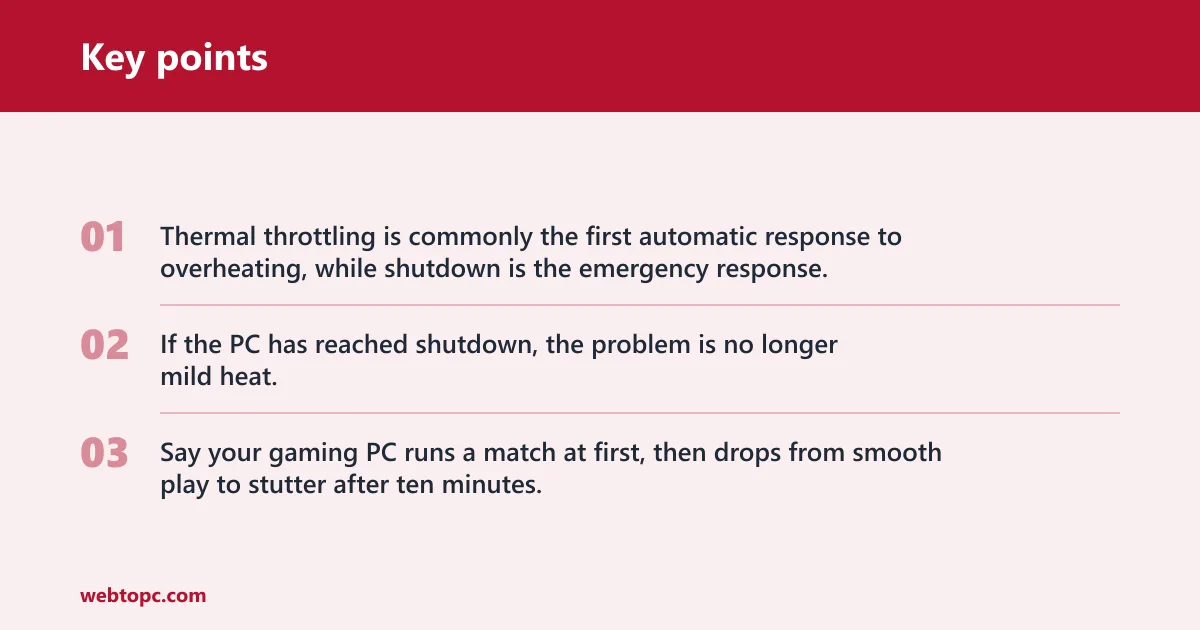
That table separates a warm machine from a failing one. Thermal throttling is commonly the first automatic response to overheating, while shutdown is the emergency response. If the PC has reached shutdown, the problem is no longer mild heat.
Say your gaming PC runs a match at first, then drops from smooth play to stutter after ten minutes. That pattern points to thermal throttling, not a random software hiccup, especially if the GPU fan is loud and the frame rate falls as the session continues.
What is thermal throttling?
Thermal throttling is automatic performance reduction that starts when temperatures get too high. The CPU or GPU lowers clocks to cut heat output, which usually means lower frame rates, lag, and slower response. It is a protection feature, but it also tells you the cooling system is near its limit.
Which parts throttle first?
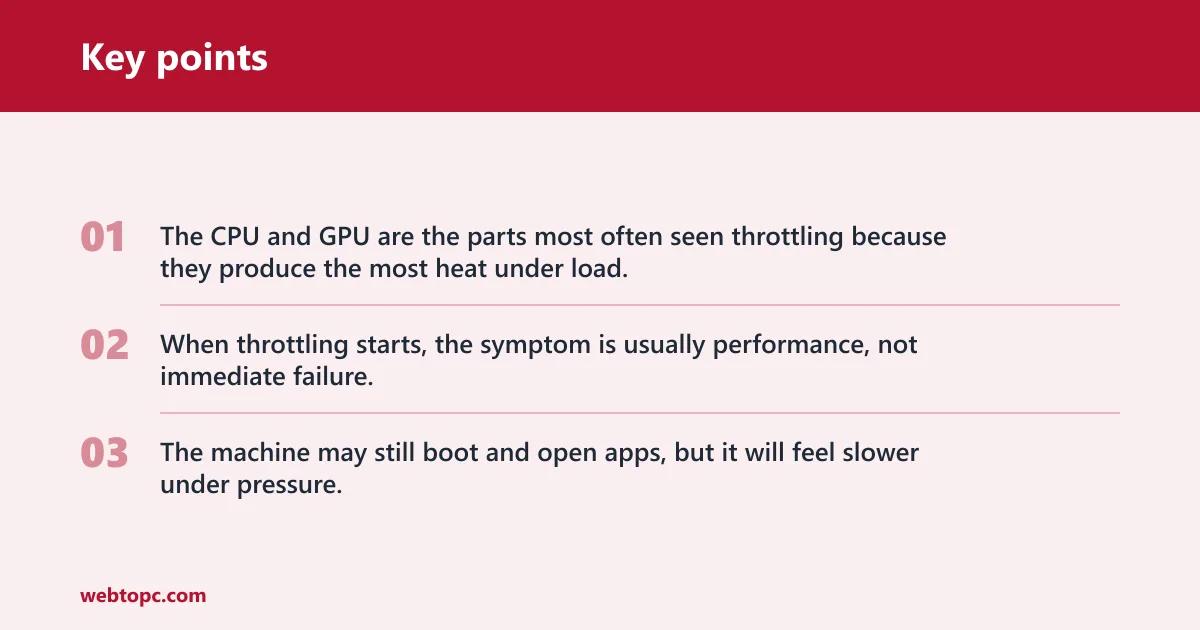
The CPU and GPU are the parts most often seen throttling because they produce the most heat under load. Either one can become the bottleneck. A GPU that goes past its ideal temperature may drop clocks during gaming, while a CPU may do the same during rendering, compression, or a long compile.
When throttling starts, the symptom is usually performance, not immediate failure. The machine may still boot and open apps, but it will feel slower under pressure. That is the point to check cooling, not the point to keep pushing harder.
What happens when heat keeps rising?
If heat keeps climbing after throttling begins, the next signs may be freezes, crashes, or unexpected shutdowns. System instability often shows up under gaming or other heavy workloads. If the temperature stays unsafe, the PC may switch off on purpose to protect hardware, or fail to boot again until it cools.
System instability
System instability means the PC no longer stays reliable under load. You may see freezes, application crashes, black screens, or a sudden restart. That stage can be brief at first, but persistent heat makes it more likely and more frequent.
A common first-timer mistake is to blame every crash on software. If the crash appears only during gaming, video encoding, or another heavy task, overheating belongs high on the list of causes.
Thermal shutdown
Thermal shutdown is built-in emergency protection. The system turns off or refuses to continue when temperatures become unsafe, which is different from a normal warm-up. If the PC will not start until it cools, that is a severe overheating signal, not a minor annoyance.
Thermal shutdown is often the point where people think the power supply failed. It can look that way, but the trigger may still be heat from the CPU, GPU, blocked airflow, or a cooling part that is not doing its job.
Can overheating damage hardware?
Yes. Repeated prolonged overheating can shorten lifespan and eventually damage hardware. The risk rises when the same heat event keeps happening, especially if it affects the CPU, GPU, motherboard, storage, or power delivery components. The worst-case outcome is component failure.
CPU and GPU risk
The CPU and GPU take the first hit because they are the hottest parts during heavy use. Strong heat can shorten a GPU’s lifespan, and overheating can lead to permanent damage if it is not addressed. Even if the machine still boots afterward, repeated heat stress is not harmless.
Motherboard, storage, and power delivery risk
Heat does not stop at the processor. Motherboard circuitry and power delivery components can also suffer when temperatures stay high. Storage devices are less often the first warning sign, but sustained heat can still affect longevity and reliability.
F1 through F6 are the main consequences to keep in mind: performance throttling, system instability, permanent damage, reduced frame rates, lag, and shorter lifespan. Those are not separate problems. They are often the same failure sequence, just at different stages.
What causes a PC to overheat?
Common causes include dust accumulation, blocked airflow, cooling system failure, poor thermal paste contact, heavy workloads, and high ambient room temperature. A case can also overheat when fans spin but the airflow path is obstructed or when the room itself is already hot, leaving little thermal headroom.
Dust accumulation and blocked airflow
Dust accumulation is a common airflow blocker inside the case and fans. It cuts cooling efficiency by restricting intake, coating heatsinks, and slowing fan movement. If dust collects on filters or fan blades, the cooling system loses capacity before any major part fails.
Cooling system failure or poor contact
The cooling system includes fans, heatsinks, radiators, thermal paste, and the airflow path. All of them have to work together. If a fan stops, a heatsink is clogged, a radiator is blocked, or thermal paste contact is poor, heat can build faster than the system can remove it.
High ambient room temperature
Ambient room temperature matters more than many users expect. A PC in a warm gaming room or a poorly ventilated space starts with less cooling headroom. The same load that is manageable in a cool room can push the system into throttling or shutdown in a hotter one.
Suppose a desktop runs quietly in a cool office, then starts throttling in a closed bedroom during summer. Nothing about the workload changed. The room temperature did, and that alone can move a borderline system into overheating.
How to check whether a PC is overheating
Temperature monitoring software is the quickest way to confirm whether overheating is happening. Watch CPU and GPU temperatures under load, then compare what you see during idle, light use, and heavy use. If the numbers climb quickly and the machine slows or crashes, you have useful evidence, not a guess.
Open monitoring software. Use a trusted temperature tool that reports CPU and GPU readings in real time. You need live data, not a rough impression from fan noise alone.
Check idle readings first. Note the temperatures when the PC is sitting at the desktop. Then open a game or another heavy app and watch how fast the readings rise under load.
Watch for paired symptoms. If temperature spikes line up with lag, reduced frame rates, or a sudden restart, overheating is more likely. A single high number matters less than the pattern across load and symptom.
Compare CPU and GPU behavior. If only one part climbs fast, that part or its cooler is the likely source. If both rise together, airflow, dust, or the room temperature may be part of the problem.
What to do if your PC overheats and won’t turn
If your PC overheats and will not turn on, stop trying to force repeated boots. Let it cool fully, then check for blocked airflow, failed fans, and obvious dust buildup. If it still refuses to boot after cooling, treat the case as a severe overheating fault and move to targeted diagnosis.
Power it off now. Shut the PC down and unplug it from power. Do not keep cycling the power button while it is still hot.
Let it cool completely. Wait until the case, fans, and internal parts are back near room temperature. A hot system can refuse to boot until the protection logic clears.
Check visible cooling faults. Look for dead fans, packed dust, blocked vents, or a loose cable at the fan or pump. These are common causes of a no-boot overheating event.
Test with light load only. Once it starts again, keep the first session short and light. If it overheats again immediately, stop using it and arrange deeper repair.
Do not treat a successful reboot as proof that nothing is wrong. Repeated overheating can still shorten lifespan even when the PC appears to recover after cooling. That pattern often points to a cooling fault that will return under the next heavy load.
Frequently asked questions
What happens when a pc overheats?
First, the PC usually throttles performance to limit heat. If temperatures keep rising, it may freeze, crash, or restart. At the severe end, thermal shutdown can switch it off or prevent booting until it cools. Repeated events raise the risk of permanent damage over time.
What happens if your pc overheats?
You will often notice lower clocks, lag, and dropped frame rates before any shutdown. If the heat continues, the system may become unstable and eventually power off to protect itself. The exact stage depends on the CPU, GPU, cooling setup, dust level, and room temperature.
What happens if my pc overheats too much?
Too much heat can push the machine from throttling into instability, then into thermal shutdown. That emergency cutoff is there to prevent damage, but it also means the PC may refuse to boot until it cools. If this keeps happening, hardware wear becomes a real concern.
What can happen if your pc overheats?
The main outcomes are slower performance, crashes, shutdowns, and long-term wear. Overheating can affect the CPU, GPU, motherboard, storage, and power delivery components. Dust accumulation, poor airflow, failed fans, and high ambient room temperature are common reasons the problem starts or returns.
What to do if your pc overheats and won t turn on?
Turn it off, unplug it, and let it cool completely before trying again. Then check for dust, blocked vents, and dead fans. If it still will not start after cooling, do not keep forcing restarts. That usually means a deeper cooling or power-delivery fault needs attention.
Can pc overheat?
Yes. A PC can overheat when the cooling system cannot remove heat fast enough for the workload. Heavy gaming, rendering, dust buildup, poor airflow, and a hot room all increase the chance. The signs range from fan noise and lag to shutdowns and boot refusal.