Why Is There No Bluetooth Option on My Windows PC?

Bluetooth usually disappears on a Windows PC because the radio is turned off, the Bluetooth service is stopped, drivers are missing, or the hardware is not installed; if it is absent in both Settings and Device Manager, hardware is the leading suspect. Miss the cause, and you can waste time on resets that never bring the toggle back. This guide shows how to check each cause fast, starting with the simplest Windows settings and ending with hardware checks.
What you’ll need
- A keyboard and mouse.
- Administrator access for Device Manager, Services, or BIOS/UEFI changes.
- Time to restart or fully shut down the PC.
- An internet connection for Windows Update and driver downloads.
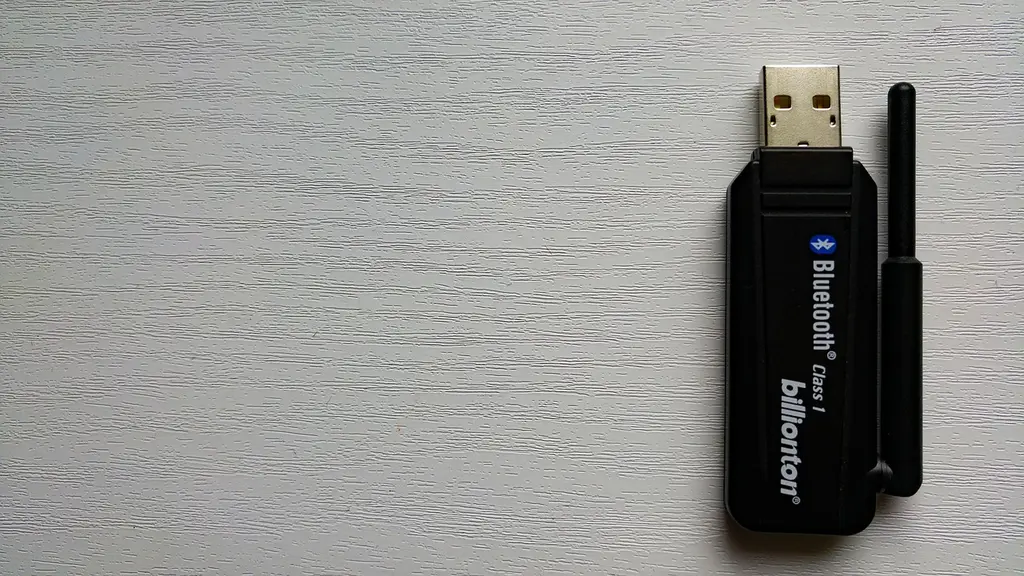
- A USB Bluetooth adapter if the PC turns out to lack built-in Bluetooth.
Why the Bluetooth option disappears
The Bluetooth button usually lives in the Settings app, under the Bluetooth area in Windows Settings. If it vanishes, the cause is often one of four things: the radio is off, Windows has disabled wireless features, the Bluetooth service is stopped, or the adapter is missing or hidden.
Windows 11 and Windows 10 do not always hide Bluetooth in the same place. On managed work PCs, policy can also remove or block the control, so a missing toggle does not always mean the hardware is dead.
Windows 11 versus Windows 10
On Windows 11, check Settings > Bluetooth & devices and then use Quick Settings with Win + A. On Windows 10, the Bluetooth switch usually sits under Settings > Devices > Bluetooth & other devices, and the Action Center is the fastest way to check wireless state.
Say your laptop shows Wi-Fi but no Bluetooth toggle after a clean boot. That points more toward a service, driver, or hidden adapter than toward a simple user setting.
Managed PC controls
A corporate or school PC may hide Bluetooth controls through policy, even when the adapter is present. If other wireless features are limited by account rules, ask the administrator before changing drivers or firmware settings. Policy restrictions can make the UI look like a hardware problem.
Check Airplane mode and restart the PC
Airplane mode can disable wireless radios, including Bluetooth, and it can remove the Bluetooth toggle from Settings. Start here because it is fast and because a restart is a common first-step fix.
If the radio state is stuck, a full shutdown can help where a normal restart does not. Fast Startup can preserve a bad hardware state, so a clean power cycle matters.
Open Quick Settings. Press Win + A on Windows 11, or open Action Center on Windows 10. Turn Airplane mode off if it is enabled, then check whether the Bluetooth tile returns.
Restart the PC. Use Start > Power > Restart. Wait for Windows to load fully, then check Settings > Bluetooth & devices again.
Do a full shutdown. Choose Start > Power > Shut down, wait 10 seconds, then power the PC back on. A restart and a full shutdown are not the same.
If Bluetooth returns only after a full shutdown, Fast Startup is a likely reason the radio state stayed stuck.
Disable Fast Startup if the problem returns
If Bluetooth disappears again after sleep or a quick boot, turn off Fast Startup in Control Panel > Power Options. That setting can keep a stale hardware state across shutdowns, which can confuse wireless devices on the next boot.
Could a service or driver issue be hiding Bluetooth?
Yes. A stopped Bluetooth Support Service, a missing driver, or a bad driver entry can make Bluetooth disappear from Settings even when the hardware exists. This is the next place to check after Airplane mode and power cycling.
Restart the service. Open
services.msc, find Bluetooth Support Service, and restart it. If it is not running, start it, then set Startup type to Automatic.Check for updates. Open Settings > Windows Update and install every pending update, then use your PC maker’s support page or Device Manager to pull the newest Bluetooth driver files.
Pending Windows updates matter because driver fixes often arrive through them, and Bluetooth issues can clear after a restart.
Open Device Manager. Right-click Start and choose Device Manager. Look under Bluetooth, Network adapters, and Other devices for warning icons, greyed-out entries, or Unknown device entries.
A common first-timer mistake is to uninstall a Bluetooth entry without checking whether Windows has hidden the real adapter under Network adapters or Unknown devices. If you see a yellow warning icon, try Update driver before removing anything.
What if Bluetooth is hidden in Device Manager?
Use View > Show hidden devices in Device Manager. Hidden adapters, greyed-out entries, and misidentified chipset devices can appear there. Some systems label the radio in a way that does not say Bluetooth at all, so check related entries before assuming the hardware is gone.
How to treat driver rollback or reinstall
If a recent driver update caused the problem, open the adapter’s properties in Device Manager and use Roll Back Driver when that button is available. If not, uninstall the adapter, restart the PC, and let Windows reinstall it on the next boot.
Should you check BIOS or UEFI?
Yes, but only after Windows checks. Some BIOS menus may disable Bluetooth by default, and some systems use other radio-related labels such as Wireless LAN or Radio Device. If the adapter is disabled at the firmware level, Windows may not show a usable Bluetooth option.
Enter BIOS or UEFI. Restart the PC and use the manufacturer’s setup key during boot. Look for wireless, radio, WLAN, or Bluetooth-related settings.
Enable wireless radios. Turn on any Bluetooth, wireless, or radio device entry you find, then save changes and exit.
Recheck Windows. After booting back into Windows, return to Settings > Bluetooth & devices and Device Manager.
Suppose the BIOS shows Wireless LAN disabled but no separate Bluetooth line. That can still matter, because some firmware groups radios together, and Bluetooth may stay off until the wireless control is enabled.
Bluetooth decision table
This table helps you separate disabled radios, service or driver failure, and missing hardware before you keep troubleshooting the wrong layer.
| Symptom | Likely cause | Fastest check | Next action |
|---|---|---|---|
| Windows 11: no Bluetooth tile in Settings > Bluetooth & devices | Airplane mode, stopped service, hidden adapter, or policy block | Press Win + A, then open services.msc | Turn off Airplane mode, restart Bluetooth Support Service, then check Device Manager |
| Windows 10: no Bluetooth option in Settings > Devices > Bluetooth & other devices | Disabled radio, missing driver, or a firmware setting | Open Action Center, then check Device Manager | Restart the PC, update Windows, and inspect Bluetooth or Network adapters |
| Bluetooth missing from both Settings and Device Manager | No built-in Bluetooth hardware, or firmware has it disabled | Check BIOS/UEFI and look for Wireless LAN or Radio Device | If no adapter appears anywhere after firmware checks, use a USB Bluetooth adapter |
Common mistakes
Do not stop at the Settings app if the toggle is missing. A visible Bluetooth switch is only one sign of a working adapter, and hidden hardware can still fail even when the UI looks normal.
Do not assume every missing toggle is a Windows bug. The fastest way to separate causes is to check Airplane mode first, then the service, then Device Manager, then BIOS or UEFI.
Do not keep reinstalling drivers if the adapter never appears in any category. That usually means the system cannot see Bluetooth hardware at all.
If a PC has no Bluetooth in Device Manager, no BIOS radio setting, and no service issue, the practical fix is usually a USB Bluetooth adapter rather than more software repairs.
Frequently asked questions
Why is there no Bluetooth option on my PC Windows 11?
Start with Win + A to rule out Airplane mode, then open Settings > Bluetooth & devices and services.msc. If Bluetooth Support Service is running and Device Manager still shows nothing under Bluetooth or Network adapters, check BIOS/UEFI and consider missing hardware.
Why is there no Bluetooth option on my PC Windows 10?
Go to Settings > Devices > Bluetooth & other devices, then open Action Center and confirm Airplane mode is off. If the toggle is still gone, check services.msc for Bluetooth Support Service and look in Device Manager for hidden or unknown adapters.
Why is Bluetooth not available on my PC?
Bluetooth is usually unavailable because the radio is off, the service is stopped, drivers are missing, or the PC does not have Bluetooth hardware. Check Device Manager first; if nothing appears under Bluetooth, Network adapters, or Unknown devices, hardware is the likely cause.
How do I know if my Windows PC has Bluetooth?
Open Device Manager and expand Bluetooth, Network adapters, and Other devices. Also check Settings > Bluetooth & devices. If no adapter shows up anywhere and BIOS/UEFI has no radio setting to enable, the PC likely lacks built-in Bluetooth.
Could a driver or service issue make Bluetooth disappear?
Yes. Restart Bluetooth Support Service in services.msc and set its startup type to Automatic. Then check Device Manager for warning icons or hidden entries. If the adapter appears after a restart, update or reinstall the driver from there.
Should I check BIOS if Bluetooth is missing?
Check BIOS or UEFI after Windows steps fail. Look for wireless, WLAN, or radio settings, because some systems disable Bluetooth there. If the firmware has no such setting and Device Manager still shows nothing, a USB Bluetooth adapter is the next practical step.