
How to Know What Caused a Blue Screen on Windows

To find what caused a blue screen on Windows, start with the stop code, the crash timing, and any repeat pattern; one recurring stop code usually points to a driver, disk, memory, or firmware fault before you change anything. Guessing wrong wastes time and can send you toward the wrong fix while the real fault keeps returning. This guide shows how to read the code, match it to the crash moment, and use post-reboot evidence to narrow the cause.
Blue screen basics
A blue screen is a Windows stop error that halts the current process and sends the system into recovery. On Windows 10 and Windows 11, the screen can show a stop code for diagnosis, and some blue screens may also include a QR code you can scan for more information.
Do not treat every crash the same. A one-time blue screen after a single bad update is a different problem from a loop that happens every boot. The timing matters because startup crashes usually point to boot files, drivers, or storage, while game-time crashes often point to graphics, heat, power, or RAM.
What you’ll need
- The exact stop code from the blue screen, written down or photographed.
- A phone camera for the QR code, if it appears.
- Access to Windows after reboot, or Safe Mode if normal startup fails.
- Device Manager.
- Event Viewer and Reliability Monitor.
- Windows Memory Diagnostic or memtest86 for memory checks.
- Basic access to disconnect USB drives, printers, webcams, and external storage.
How to read the stop code
The stop code is your first clue. It can appear as text, such as a named error, or as a hexadecimal identifier such as 0x00000116 or 0x00000133. It does not always name the exact failed part, but it often narrows the source to graphics, storage, memory, boot corruption, or a driver conflict.
Stop code patterns and what they usually point
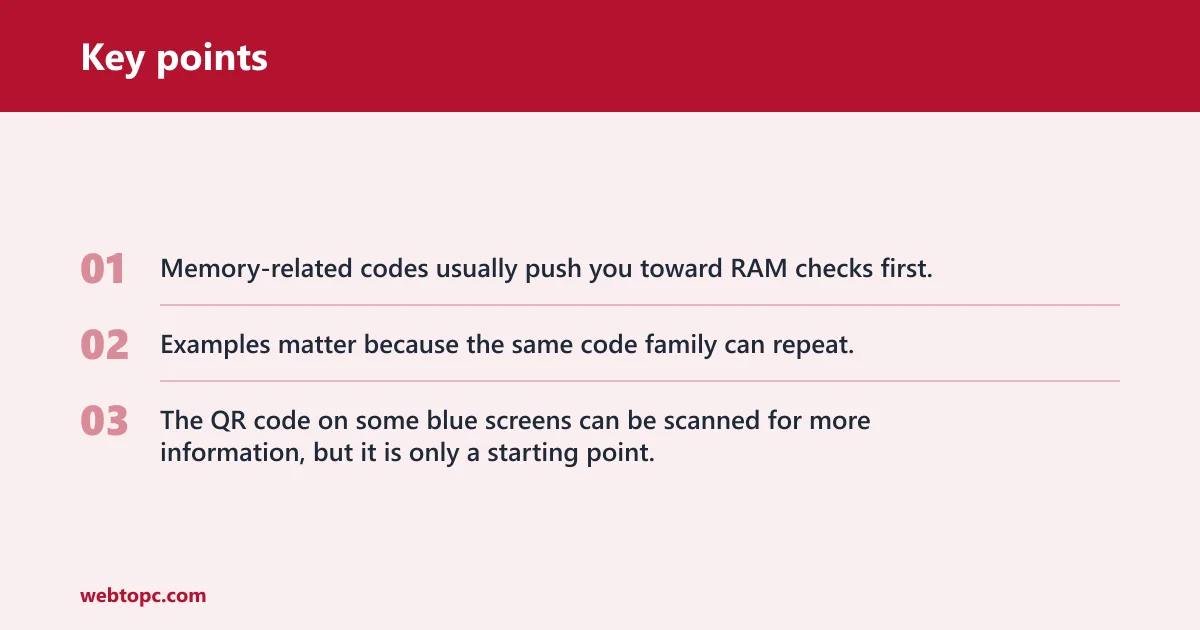
Codes that mention display or watchdog behavior often point toward the GPU path, a driver timeout, or a device that stalled under load. Memory-related codes usually push you toward RAM checks first. Boot-time codes often point to corrupt system files, a bad update, or a storage problem that affects Windows before the desktop loads.
Examples matter because the same code family can repeat. Dell lists VIDEO_TDR_FAILURE with stop code 0x00000116 and DPC_WATCHDOG_VIOLATION with stop code 0x00000133, both of which are useful clues rather than final answers.
Where the QR code fits in the diagnosis
The QR code on some blue screens can be scanned for more information, but it is only a starting point. It can help you capture the error label quickly, yet it cannot replace the stop code, the crash timing, and the logs that appear after restart.
Where to check after reboot
After Windows starts again, check the places that record the crash instead of guessing from memory. Event Viewer, Reliability Monitor, and the minidump files often show whether the fault touched a driver, a device, a system file, or a kernel path. These sources are shared across Windows 10 and Windows 11.
Event Viewer
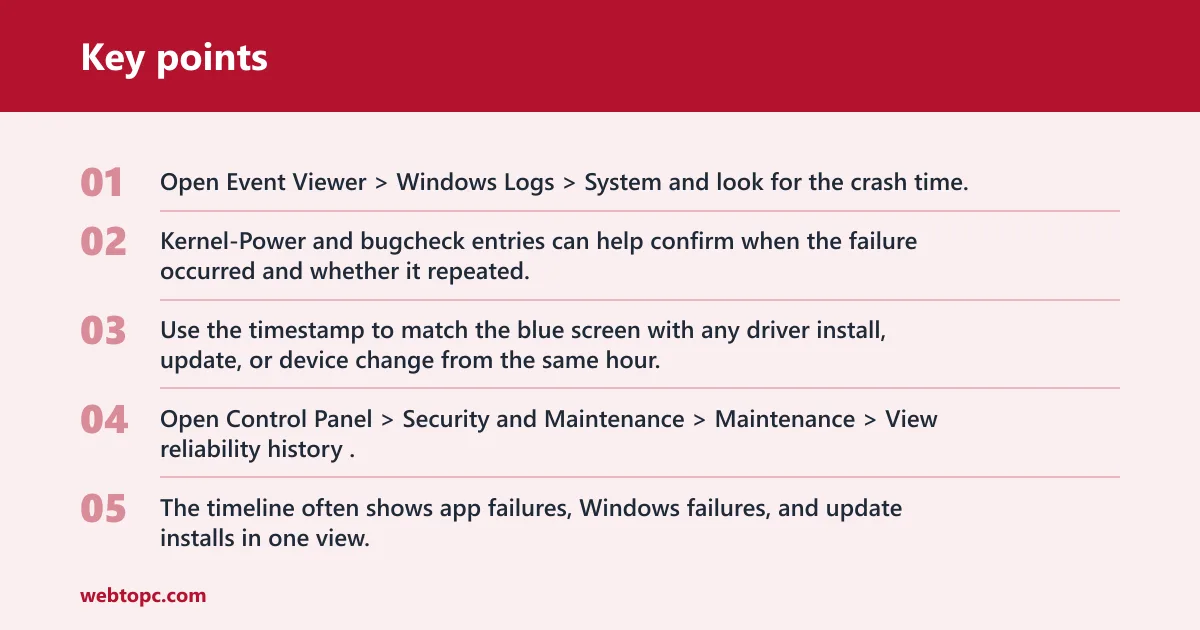
Open Event Viewer > Windows Logs > System and look for the crash time. Kernel-Power and bugcheck entries can help confirm when the failure occurred and whether it repeated. Use the timestamp to match the blue screen with any driver install, update, or device change from the same hour.
Reliability Monitor
Open Control Panel > Security and Maintenance > Maintenance > View reliability history. The timeline often shows app failures, Windows failures, and update installs in one view. A crash that began right after a driver or app change is a strong clue.
Minidump files
Check C:\Windows\Minidump\*.dmp after a reboot. These files are the main crash records for many BSODs. If Windows will not boot normally, start in Safe Mode first, then copy the files for later analysis or support review.
Blue screen cause triage table
| Crash timing | Stop code pattern | Likely subsystem | Evidence to check next | First safe test to run |
|---|---|---|---|---|
| During startup or right after sign-in | Boot, file, or service-related code | System files, storage, or a startup driver | Event Viewer, Reliability Monitor, C:\Windows\Minidump\*.dmp | Safe Mode, then run sfc /scannow |
| When waking from sleep | Power, resume, or watchdog pattern | Driver resume path, firmware, or GPU | Recent driver changes, Device Manager, Reliability Monitor | Disconnect external devices, then test sleep again |
| During gaming or video playback | Display or timeout code | GPU driver, graphics stack, or overheating | Device Manager, temperature-related shutdown history, minidumps | Roll back the display driver in Device Manager |
| One-off crash after an update or install | Any code that appeared once | Software conflict or corrupt setup state | Reliability Monitor, installed updates, recent apps | Uninstall the latest non-essential change |
| Repeated crash with memory-style codes | Memory-related or random codes | Faulty RAM or unstable memory settings | Windows Memory Diagnostic, memtest86, minidumps | Run a full memory test |
How do you narrow the cause safely?
Start with the least invasive checks: remove outside devices, reduce driver load, and use the logs to confirm what changed. That path avoids random repairs and keeps you focused on the most likely source first. If the crash returns with the same pattern, move to the next step in the ladder.
-
Disconnect external peripherals.
Unplug USB drives, printers, webcams, and external storage, then reboot. A bad peripheral or cable can trigger a crash during startup, sleep, or device detection. -
Boot into Safe Mode.
Go to Settings > Recovery > Advanced startup > Restart now > Troubleshoot > Advanced options > Startup Settings. Safe Mode loads only essential Windows files and drivers, which helps separate a Windows core problem from a third-party driver or app. -
Check Windows Update and Device Manager.
Open Settings > Windows Update first, then Device Manager. Update Windows to pick up bug fixes and driver fixes, or roll back a recent driver through Device Manager > device > Properties > Driver tab > Roll Back Driver if the crash began after a change. -
Run hardware diagnostics.
Use Windows Memory Diagnostic (mdsched.exe) or memtest86 for RAM, and the vendor tool or built-in disk check for storage. Hardware diagnostics can return error codes that support a warranty or repair case.
What causes a blue screen on Windows?
The most common causes are driver conflicts, corrupt system files, faulty RAM, storage problems, software conflicts, overheating, and malware. The same source lists hardware failures, driver conflicts, corrupt system files, and software problems as common causes, while Avira also cites incompatible drivers, faulty working memory, overheating, and malware damage to important files or folders (reported by windowscentral.com).
Driver conflicts
Can a bad driver cause a blue screen on Windows? Yes. A driver can crash Windows when it hooks into the kernel incorrectly, fails after an update, or conflicts with a new device. If the crash started after a driver install, update, or device swap, test a rollback first in Device Manager.
Corrupt system files
Corrupt system files are common when the blue screen appears during startup or shortly after sign-in. Run these commands from an elevated Command Prompt or Windows Terminal:
sfc /scannow
DISM /Online /Cleanup-Image /RestoreHealth
If Windows keeps crashing before the desktop appears, run the commands from Safe Mode.
Faulty RAM and storage problems
Faulty RAM can produce memory-style stop codes, random crashes, and crashes that move around between apps. Storage problems often show up during boot, updates, or file access. Start with Windows Memory Diagnostic; if the machine still fails, test the drive with a hardware diagnostic or chkdsk from recovery tools.
Gaming, sleep, and startup patterns
Say your PC blue-screens only when a game loads a new map. That pattern points more toward graphics drivers, power delivery, or heat than toward a random app issue. Suppose it crashes only after waking from sleep. That shifts suspicion toward a resume-path driver or firmware issue, not the browser you used earlier.
Common mistakes
A common first-timer mistake is changing several things at once. If you remove peripherals, update Windows, and roll back a driver before checking the logs, you lose the evidence trail. Make one change, reboot, and see whether the same stop code returns.
Another mistake is assuming a single crash means a major hardware failure. One-off BSODs can come from a bad app, a temporary driver conflict, or a bad update. Repeated crashes deserve a deeper search, but a single event needs evidence first.
Do not overread the QR code. It can help identify the code family, but it does not replace Event Viewer, Reliability Monitor, or the minidump files. Do not skip Safe Mode if normal startup keeps failing.
Frequently asked questions
How to find out what causes a blue screen windows 10
Write down the stop code, then check Event Viewer > Windows Logs > System, Reliability Monitor, and C:\Windows\Minidump\*.dmp. If the crash began after an update or driver change, use Device Manager to roll back that driver before trying broader repairs.
How do I read the stop code on a blue screen?
Read the exact text or hexadecimal code shown on the screen and copy it before rebooting. If a QR code appears, scan it for the code name, then compare it with the crash timing and the logs after restart. The code narrows the source; it does not name every bad part.
Can a bad driver cause a blue screen on Windows?
Yes. A bad driver is one of the main BSOD causes, especially after an update or an incompatible install. Check Device Manager > Properties > Driver tab and use Roll Back Driver if the blue screen started right after that driver changed.
How do I use the QR code on a blue screen to identify the issue?
Scan it with a phone camera to capture the stop code or support page reference, then use that result as a starting point. After reboot, verify the same failure in Event Viewer, Reliability Monitor, or C:\Windows\Minidump\*.dmp before you change anything.