How to Change a Printer From Offline to Online in Windows 11

To change a printer from offline to online in Windows 11, match the fix to the connection first: check the USB cable for a wired printer, the Wi‑Fi link for a wireless one, or the Windows 11 print queue if the printer is offline on only one PC. If you chase the wrong path, you waste time and leave jobs stuck in the queue. This guide shows the fastest checks in the right order, with separate steps for USB, Wi‑Fi, and one-PC-only problems.
Quick fix order
Start with the simplest branch that matches the symptom. If the printer panel shows an active connection but Windows says offline, check the queue and the Use printer offline setting first. If the printer is offline on the panel too, work outward from power and network before Windows settings.
- Check the connection path. Decide whether the printer is USB, Wi‑Fi, or shared from another PC. That choice changes the next step and keeps you from resetting the wrong part.
- Open the printer page. Go to Start > Settings > Bluetooth & devices > Printers & scanners, then select the printer. From there you can open the queue, change default settings, or remove the device.
- Clear the queue if jobs are stuck. Use Open print queue and Cancel all if pending jobs block printing. A stuck job can keep the printer flagged offline.
- Uncheck offline mode. In the queue window, open the Printer menu and clear Use printer offline if it is enabled.
- Restart the spooler next. If the queue still looks stuck, restart the Print Spooler service from Services.
- Remove and add it back. If the printer still shows offline after those steps, remove it from Printers & scanners and reinstall it.
📊 Microsoft says the printer troubleshooter in Windows 11 starts in the Get Help app. Source: Microsoft.
What you’ll need
- The printer powered on and connected.
- A USB cable, if the printer is wired.
- Access to the printer’s control panel or menu, if it uses Wi‑Fi.
- Admin access on Windows 11 for service and device changes.
- One minute for a power reset and a few minutes for queue checks.
Printer offline decision table
| Connection type | Visible symptom | Likely cause | First action |
|---|---|---|---|
| USB | Offline in Windows only | Loose cable, sleeping printer, or a stuck queue | Open the queue, cancel jobs, then check the cable at both ends |
| Wi‑Fi | Offline on printer panel too | Printer lost the network or joined the wrong SSID | Check the printer’s Wi‑Fi status on its built-in menu |
| Wi‑Fi | Offline in Windows only | Windows has a stale printer mapping or the queue is blocked | Open the queue, clear jobs, then restart the Print Spooler |
| Shared printer | Jobs paused | The host PC, share, or port mapping is stale | Check the host PC first, then remove and reinstall on the client |
| When each fix is a dead end | Move on when… | Next step |
|---|---|---|
| Cancel all | The queue clears but the printer still reads offline | Restart the Print Spooler |
| Print Spooler restart | The queue restarts yet the printer returns offline after refresh | Remove and reinstall the printer |
| Remove and reinstall | The printer reappears offline after setup | Check the cable, Wi‑Fi network, or the shared host PC |
Why is the printer offline?
A printer can be online at the panel and still appear offline in Windows 11 if the queue is blocked, Use printer offline is checked, or Windows is pointing at the wrong device entry. If it is offline on the printer itself too, the problem is more likely power, cable, or network.
USB printer symptoms
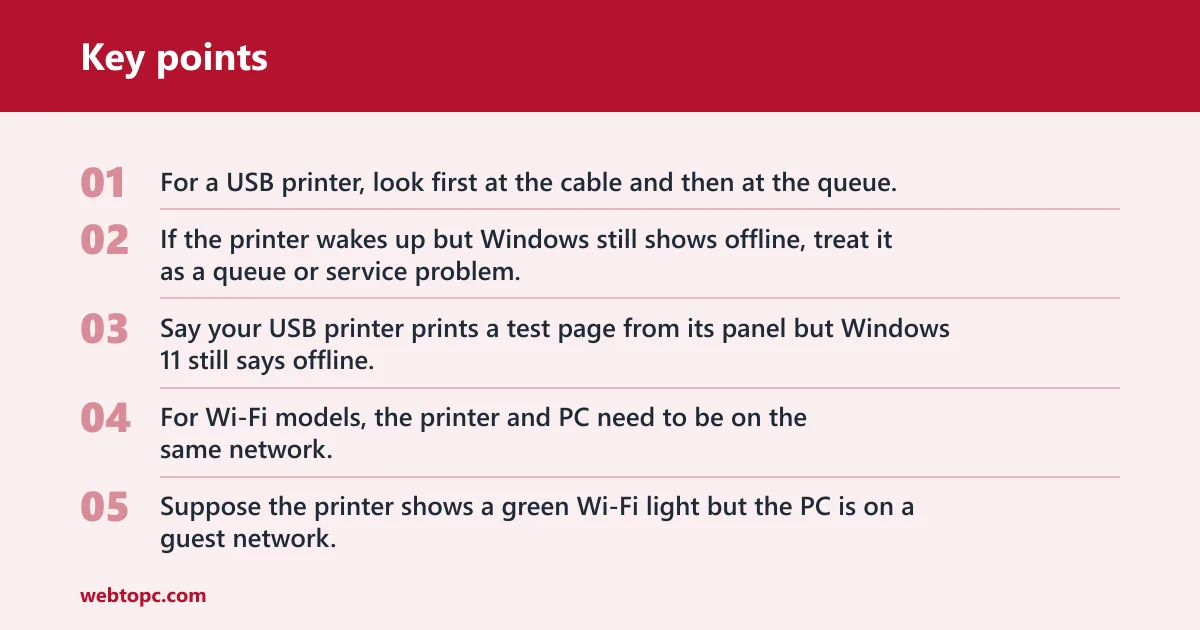
For a USB printer, look first at the cable and then at the queue. A loose cable, a bad hub, or a sleeping printer can make Windows mark the device offline even when the printer looks ready. If the printer wakes up but Windows still shows offline, treat it as a queue or service problem.
Say your USB printer prints a test page from its panel but Windows 11 still says offline. That points away from the printer hardware and toward the PC path, especially the queue or a stale device entry.
Wi-Fi printer symptoms
For Wi‑Fi models, the printer and PC need to be on the same network. If the printer’s built-in menu shows a different SSID than the PC uses, or no Wi‑Fi link at all, Windows cannot send jobs to it.
Suppose the printer shows a green Wi‑Fi light but the PC is on a guest network. That mismatch is enough to make the printer look offline in Windows 11.
Only one PC shows offline
If one computer prints and another does not, the printer is usually not the problem. The issue is often a stale Windows printer mapping, a wrong port, or a queue that stayed paused on that one PC.
That is the point to check the default printer, the queue status, and the printer entry under Printers & scanners before you touch the network.
How do you turn off Use printer offline?
Open the printer queue from Start > Settings > Bluetooth & devices > Printers & scanners, then clear Use printer offline from the Printer menu if it is checked. If that option is enabled, Windows will hold jobs even when the printer is ready.
- Open the printer queue. Go to Start > Settings > Bluetooth & devices > Printers & scanners, select the printer, then choose Open print queue.
- Check the Printer menu. In the queue window, open Printer and look for Use printer offline. If the box has a checkmark, click it once to clear it.
- Send a new job. Print a one-page document after the change so Windows refreshes the status instead of leaving the old offline flag in place.
When the option is greyed out
If Use printer offline is missing or greyed out, the queue may already be closed, the printer may be paused, or Windows may be waiting on a stuck job. Open Open print queue again, clear any pending items, and then return to the Printer menu.
How do you clear the queue and restart Print Spooler?
Use this when the printer is online on its panel but still refuses to print from Windows. Clear the queue first, then restart the Print Spooler service if jobs remain stuck. Microsoft lists both steps for offline printer problems.
- Cancel all pending jobs. Open Start > Settings > Bluetooth & devices > Printers & scanners, choose the printer, and open Open print queue. Then select Cancel all to clear blocked jobs.
- Restart the spooler service. Open Services, find Print Spooler, and choose Restart. This refreshes the queue manager that Windows uses for printing.
- Try a test page. Send one small job after the restart. If the printer comes back online, the blockage was in the queue path rather than the printer itself.
services.msc
Print Spooler
Restart

net stop spooler
net start spooler

%systemroot%\System32\spool\PRINTERS
If that didn’t work
If the queue clears and the spooler restarts but the printer still drops offline, the Windows device entry may be stale. That is when a remove-and-reinstall pass is faster than repeating the same queue steps.
When should you remove and reinstall the printer?
Removing and reinstalling the printer is often recommended after the queue and spooler checks fail, or when only one PC keeps showing offline. This refreshes the connection record and driver state from Printers & scanners, which often fixes a bad Windows mapping or port entry.
- Check the default printer first. In Start > Settings > Bluetooth & devices > Printers & scanners, open the printer and select Set as default if it is not already the default. If Let Windows manage my default printer is on, turn it off first.
- Remove the printer. In the same settings page, choose Remove for the problem printer. This clears the saved Windows entry.
- Add it again. Return to Printers & scanners and add the printer again. Use the correct USB, Wi‑Fi, or shared path so Windows builds a fresh connection.
Common first-timer mistake: removing the printer before clearing a stuck queue. That can leave jobs stranded and make the reinstalled printer look broken again as soon as it appears.
Keep the printer on the same Wi‑Fi network as the PC, and avoid leaving Let Windows manage my default printer enabled if you need one printer to stay selected.
Common mistakes
- Skipping the queue. A printer can look offline because a job is blocked. Open the queue and use Cancel all before deeper changes.
- Fixing the wrong path. A USB printer needs a cable check first; a Wi‑Fi printer needs a network check first.
- Ignoring the printer panel. If the printer itself says it is offline, Windows is not the only problem.
- Leaving the default setting wrong. If another printer is set as default, Windows may keep sending jobs to the wrong device.
- Stopping too early. If the queue and spooler fail, move to remove and reinstall instead of repeating the same step.
Frequently asked questions
How do I change my printer from offline to online in Windows 11?
Go to Start > Settings > Bluetooth & devices > Printers & scanners, open the printer queue, and clear Use printer offline if it is checked. If the printer still stays offline, use Cancel all, restart Print Spooler, and then remove and reinstall the printer from the same settings page.
Why is my printer offline even though it is turned on?
Windows 11 can show offline when the print queue is stuck, the printer is on the wrong Wi‑Fi network, or the Windows device entry is stale. Start with Open print queue, then check the printer’s network status on its panel, and restart Print Spooler if the queue does not clear.
How do I turn off Use printer offline in Windows 11?
Open Start > Settings > Bluetooth & devices > Printers & scanners, select the printer, and open Open print queue. In the queue window, use the Printer menu and clear Use printer offline. If the option is greyed out, cancel any pending jobs first.
How do I clear a stuck print queue when my printer is offline?
Open the printer from Printers & scanners, then choose Open print queue and Cancel all. If jobs stay in place, restart the Print Spooler service from Services with services.msc, then send a fresh test page.
How do I restart the Print spooler in Windows 11?
Press Win+R, type services.msc, and press Enter. Find Print Spooler, then choose Restart. You can also use net stop spooler followed by net start spooler in Command Prompt if the service window will not cooperate.
Why is my printer offline for only one computer?
That usually points to a stale Windows mapping, a wrong default printer, or a bad local queue on that one PC. Check Start > Settings > Bluetooth & devices > Printers & scanners, confirm the right printer is set as default, and then remove and reinstall the device if the status does not change.
How do I know if my printer is connected to the same Wi-Fi network?
Open the printer’s built-in menu and check its Wi‑Fi status or network name. The printer and the PC should show the same network name, not a guest or extra band. If they differ, reconnect the printer to the same Wi‑Fi network the PC uses.
Should I remove and reinstall the printer if it still shows offline?
Yes, after the queue and spooler steps fail. Remove it from Start > Settings > Bluetooth & devices > Printers & scanners, then add it again. That refreshes the Windows connection record and often fixes a stale port or driver mapping that queue resets do not touch.