
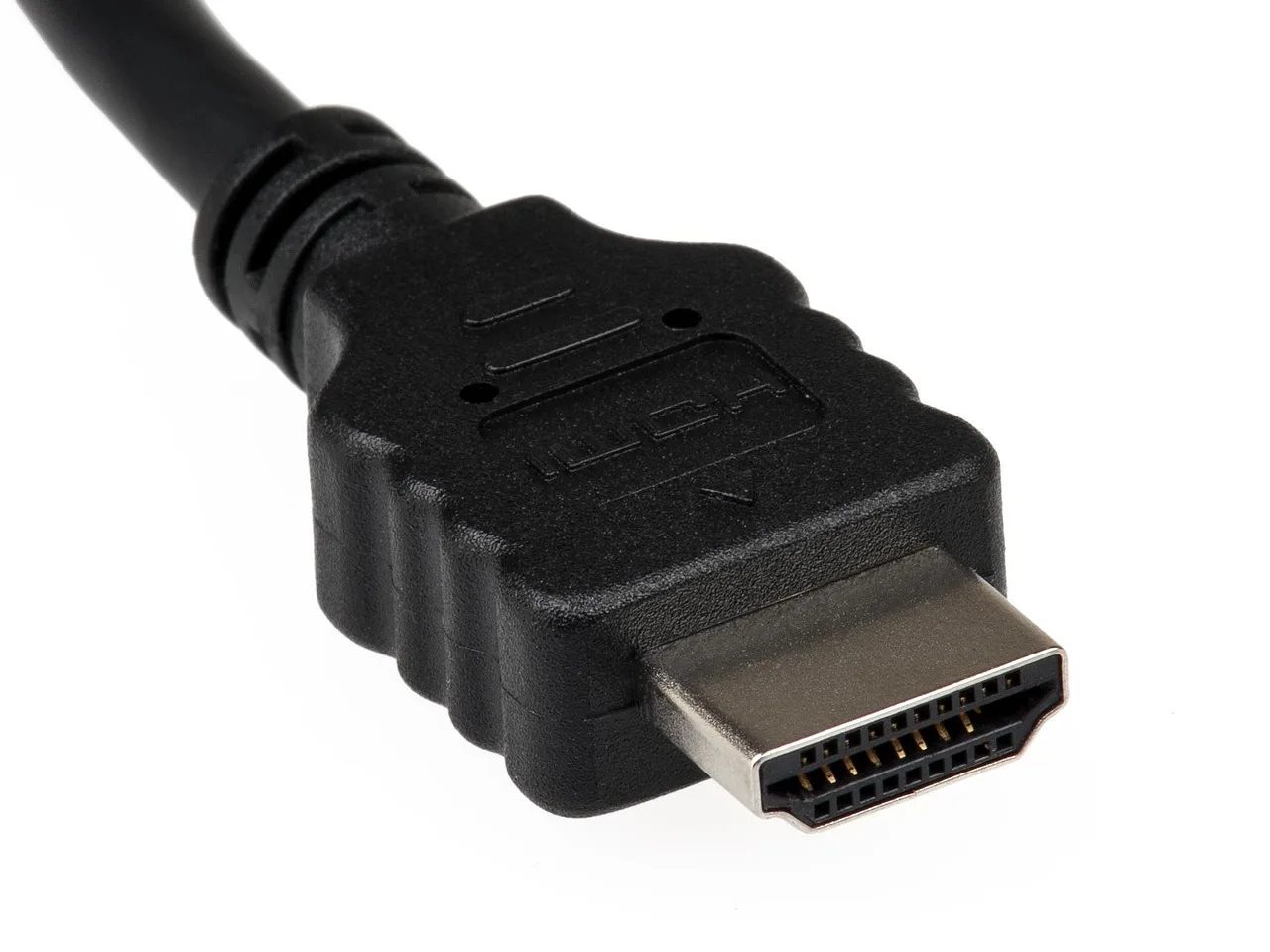
How to Screen Share to a TV with HDMI
Connect the Windows PC to the TV with an HDMI cable, then match the TV’s HDMI input and set Windows to Duplicate or Extend with Win+P. If the port, input, or display mode is wrong, you get a black screen, a cropped image, or no sound. This guide covers port checks, input selection, Windows display modes, and quick fixes for video and audio.
How HDMI screen sharing works on Windows
HDMI gives you a direct wired path for video and audio from a Windows PC to a TV. The TV must be on the correct input, and Windows must send the picture to that display in either mirrored or extended mode. This works on Windows 11 and Windows 10.
What you’ll need
- An HDMI cable for the PC-to-TV link.
- A TV with an HDMI port and its remote control.
- A Windows 10 or Windows 11 PC or laptop.
- A USB-C to HDMI adapter if the laptop has no built-in HDMI port.
- A Mini DisplayPort to HDMI cable if the PC uses Mini DisplayPort.
- Separate audio handling if the PC uses VGA or DVI.
HDMI is the simplest wired route for TV viewing because it carries both video and audio. For low-latency playback and a steady signal, it is usually the first connection to try. If the TV is far from the PC, use a cable long enough to reach without strain.
How do you connect a PC to a TV with HDMI?
Locate the correct port on both devices, connect the cable firmly, then switch the TV to that HDMI input. If your laptop has no HDMI port, use the correct adapter first. The TV should display the PC after you select the right HDMI source.
Find the ports first
- Check the TV inputs. Look on the back of the TV for HDMI ports and note which one you used. The article recommends making a note of the exact port number, such as HDMI 1 or HDMI 2.
- Check the PC output. Use the HDMI port on the laptop or desktop if it has one. Some newer laptops do not have a built-in HDMI port, so do not force the cable into a USB-C or other connector.
- Use the right adapter. If the laptop has USB-C instead of HDMI, use a USB-C to HDMI adapter. If it has Mini DisplayPort, use a cable with HDMI on one side and Mini DisplayPort on the other.
Switch the TV input
- Press Source or Input. Use the TV remote to open the input menu. Most TVs label this button Source or Input.
- Select the matching port. Choose the same HDMI number you plugged into on the TV, such as HDMI 1 or HDMI 2. A wrong input can usually result in a black screen even when the cable is connected.
If the cable is in HDMI 2 on the TV, but the input menu stays on HDMI 1, the TV remains blank even though the PC sends a signal. Switching the source to HDMI 2 fixes the problem immediately.
How do you mirror or extend your display in Windows?
After the TV is on the right input, choose whether Windows should duplicate the desktop or use the TV as a second screen. Duplicate mode is best for simple viewing and presentations. Extend mode is better for productivity because it gives you more desktop space.
Choose a display mode
- Open projection controls. Press Win+P to open the display mode menu.
- Pick Duplicate or Extend. Choose Duplicate to show the same screen on both devices, or Extend to use the TV as a second display. Windows users can choose whether to extend the screen or show it only on the TV. (Wikihow)
- Check the desktop layout. If the mouse moves off one screen and onto the other, Extend is active.
Duplicate is the faster choice for a movie, browser page, or slide deck on the TV. Extend is useful when you want the TV to hold a document, chat window, or timeline while the laptop stays on your main work area.
Check Windows 11 display settings
- Open Display settings. Go to Settings > System > Display.
- Detect the TV. If the TV does not appear, select Multiple displays and choose Detect.
- Match the projection mode. Set Duplicate or Extend from the projection options if Win+P is not enough.
Windows 11 sometimes shows the second screen in Settings before the desktop layout updates. If the TV is connected but still missing, recheck the HDMI input on the TV, then return to Settings > System > Display and run Detect again.
HDMI troubleshooting matrix
Start with the TV input and display mode before changing cables or adapters.
| Symptom | Likely cause | Exact Windows fix | Exact TV fix | Adapter needed |
|---|---|---|---|---|
| No signal | Cable not seated, wrong output, or TV on the wrong source | Press Win+P and choose Duplicate; then open Settings > System > Display and select Detect | Press Source or Input and choose the HDMI port you used | Only if the PC lacks HDMI |
| Wrong input | TV is set to a different HDMI port | No Windows change needed until the TV source matches | Select the exact HDMI number used on the back of the TV | No |
| Duplicated but cropped | TV and PC resolutions do not match well | Go to Settings > System > Display and lower the TV’s resolution or scale, then recheck Duplicate | Set picture mode to a standard format if the TV offers one | No |
| Extend mode not detected | Windows has not added the TV as a second display | Use Win+P and pick Extend; if needed, open Settings > System > Display and choose Detect | Recheck the HDMI input and cable seating | No |
| No audio on TV | Wrong sound output device or adapter does not carry audio | Open Settings > System > Sound and choose the TV or HDMI output device | Raise the TV volume and unmute the set | Possibly, if using VGA-to-HDMI or DVI-to-HDMI |
| USB-C laptop | No built-in HDMI port | After connecting the adapter, use Win+P and select Duplicate or Extend | Set the TV to the correct HDMI source | USB-C to HDMI adapter |
| VGA/DVI legacy PC | Old video output type | Use the matching HDMI source on the TV | VGA-to-HDMI or DVI-to-HDMI adapter; audio may need a separate cable | |
| Weak or too-short cable | Cable does not reach cleanly or the plug is under strain | No setting change; reconnect after replacing the cable | No setting change; use the same input after the new cable is installed | Longer HDMI cable |
If that didn’t work, try this next
- Reseat both ends. Unplug and reconnect the HDMI cable at the PC and TV. A loose connector is common and easy to miss.
- Swap the cable path. If you are using an adapter, connect the adapter directly to the laptop and then the HDMI cable to the adapter. This removes one extra link from the chain.
A common first-timer mistake is plugging the cable into the TV correctly, then leaving Windows on the laptop screen only. In that case, the TV shows nothing until Win+P is used to pick Duplicate or Extend.
Common mistakes to avoid
Most problems come from skipping one check: the port, the TV source, or the Windows mode. HDMI does carry audio as well as video, but older adapters can change that. VGA-to-HDMI or DVI-to-HDMI adapters may not pass audio to the TV.
- Do not assume the TV will auto-detect the PC.
- Do not use the wrong HDMI port number on the TV.
- Do not confuse Duplicate with Extend.
- Do not expect VGA or DVI adapters to send sound without extra audio handling.
- Do not ignore cable length if the PC is far from the TV.
Write down the HDMI port you used and leave the cable connected to that same port when possible. That avoids source-mismatch problems the next time you connect the PC.
How do you screen share to a TV with an HDMI cable?
Plug the HDMI cable into the PC or adapter, switch the TV to the same HDMI input with Source or Input, then press Win+P and choose Duplicate or Extend.
Frequently asked questions
How do I share a laptop screen to a TV through HDMI?
Use the laptop’s HDMI port if it has one, or a USB-C to HDMI adapter if it does not. Then pick the correct TV input and set the Windows projection mode with Win+P. The TV should show the laptop once the source and mode match.
Do I need an HDMI adapter for a MacBook to TV?
Yes, if the MacBook has only USB-C ports. A USB-C to HDMI adapter is the standard choice, because the adapter passes display output to the TV. After connecting, select the TV’s HDMI source and choose the display mode on the laptop.
How do I switch my TV to the correct HDMI input?
Use the TV remote and press the button labeled Source or Input. Then choose the HDMI port number that matches the one you plugged into, such as HDMI 1 or HDMI 2. The TV should show the PC after that selection.
Can I mirror my screen or extend it with HDMI?
Yes. HDMI supports both modes on Windows. Duplicate mirrors the same screen on the TV and PC, while Extend turns the TV into a second desktop. Use Win+P to switch between them.
Will HDMI carry audio as well as video to the TV?
Yes, standard HDMI carries both video and audio. If sound stays on the laptop, open Settings > System > Sound and pick the HDMI or TV output device. VGA-to-HDMI and DVI-to-HDMI adapters may need separate audio handling.
What if my device does not have an HDMI port?
Use the port the device does have. A USB-C to HDMI adapter works for many newer laptops, and Mini DisplayPort can be connected with a cable that has HDMI on one side. Older PCs may need VGA or DVI adapters, with separate audio in some cases.
What is the difference between screen mirroring and casting to a TV?
With HDMI on Windows, the relevant choice is mirroring or extending a wired display. Mirroring shows the same screen on both devices. Casting usually means sending media over Wi-Fi, which is a different process from a direct HDMI connection.
