
Wi-Fi Not Working but Ethernet Is: What Should I Check?
Check Wi‑Fi first, then compare Ethernet. If Ethernet works and Wi‑Fi fails on one Windows PC, the problem is usually the adapter, saved network settings, router radio, or DNS, not the ISP. Missing that split can send you down the wrong path and leave the PC offline on battery or away from a cable. This guide gives you a short Windows decision tree that separates adapter, router, DNS, and ISP problems using Ethernet as the control test.
What the symptom usually means
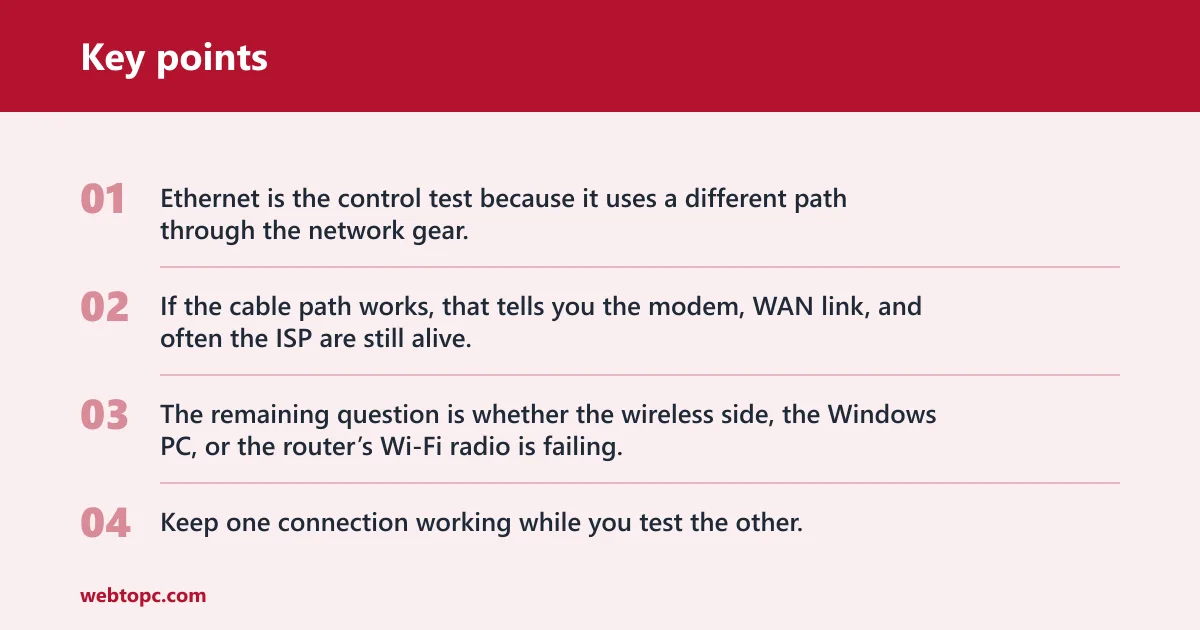
The key idea is simple. Ethernet is the control test because it uses a different path through the network gear. If the cable path works, that tells you the modem, WAN link, and often the ISP are still alive. The remaining question is whether the wireless side, the Windows PC, or the router’s Wi‑Fi radio is failing.
A common mistake is to power-cycle the router, modem, and laptop all at the same time without checking whether Wi‑Fi is simply connected to a bad network or wrong password. That hides the clue you need. Keep one connection working while you test the other.
Wi-Fi Ethernet decision table
Use the table below before changing settings. It turns the symptom into a fault domain, then points you to the fastest next test. Start with the row that matches what you see right now.
| Symptom | Likely fault domain | Fastest test | Next action |
|---|---|---|---|
| Ethernet works on this PC | Wi‑Fi adapter, Windows profile, or router wireless radio | Check the Wi‑Fi toggle, airplane mode, and Device Manager | Enable the adapter, reconnect to the saved SSID, then check both 2.4 GHz and 5 GHz |
| Wi‑Fi works on phone but not PC | Windows device, driver, or saved profile | Open Device Manager and inspect the Wi‑Fi adapter status | Forget the network, reconnect, and update or reinstall the adapter driver |
| Both fail | Router, modem, or ISP | Check router and modem lights, then test another device | Power-cycle the modem and router, check for an outage, and wait if the provider has an area issue |
| Wi‑Fi connects but no internet | DNS, gateway, or ISP path | Try automatic DNS, then flush DNS and renew the address | Set DNS to automatic or use 8.8.8.8 and 8.8.4.4, then retry |
| One band works, the other does not | Band-specific router behavior or adapter support | Test 2.4 GHz and 5 GHz separately | Use the band that connects, or adjust router band steering and security mode |
What should you check first?
Start with the Windows Wi‑Fi toggle, airplane mode, and the adapter’s enable state. If Ethernet works, those checks are faster than a reset and usually separate a disabled radio from a real network outage. If the Wi‑Fi profile is stale, forgetting and re-adding the network often fixes it.
Start with the Windows controls
Turn Wi‑Fi on. Open Quick Settings or Network settings and confirm the Wi‑Fi toggle is enabled. If airplane mode is on, turn it off first, because it disables wireless radios even when the adapter itself is fine.
Check the adapter state. Open Device Manager, expand Network adapters, and look for the Wi‑Fi device. Confirm it is present and has no warning icon. A disabled adapter or driver error can block Wi‑Fi while Ethernet keeps working.
Reconnect the saved network. If Windows shows the SSID but refuses to join, remove the saved Wi‑Fi profile and add the network again with the password. That clears stale security details, which often break one PC after a password, security, or router setting change.
If Ethernet is active on the same PC, that is useful. It means Windows networking is not fully broken, which makes a Wi‑Fi-only problem more likely than a full internet outage.
Use Ethernet as the control test
Plug in a LAN cable and see whether the PC reaches the internet. Turning off Wi‑Fi can help identify whether the fault lies in the cable or the connection, and Windows users can enable a disabled Ethernet adapter from Network Connection settings if the wired link is the one that is off.
Suppose the PC connects by Ethernet immediately, but the Wi‑Fi icon says “no internet” or keeps looping at “connecting.” That points away from the ISP and toward the wireless adapter, the saved profile, the router’s radio, or the security mode on the access point.
Why does Wi‑Fi work on your phone but not the PC?
If the phone joins the same Wi‑Fi network and the Windows PC does not, the router is not the only suspect. The PC may have a disabled or misbehaving Wi‑Fi adapter, a bad driver, a saved profile that no longer matches the router, or a band mismatch on 2.4 GHz or 5 GHz.
Check the adapter and driver first
Open Device Manager. Look under Network adapters for the Wi‑Fi device. If it is disabled, enable it; if there is an error badge, the driver may need a reinstall or update.
Compare band support. Test both 2.4 GHz and 5 GHz if the router broadcasts them separately. Some adapters or older drivers join one band reliably and fail on the other, especially after a router reboot or password change.
Refresh the profile. Remove the SSID from saved networks, then reconnect and re-enter the password. A saved profile can keep old security details, which is enough to block one PC while every other device keeps working.
Picture a laptop that joins the guest network on 2.4 GHz but not the main 5 GHz SSID. That does not point to a dead internet line. It points to band-specific behavior, adapter support, or router security settings that the phone can handle but the PC cannot.
How do router lights narrow the fault?
Router and modem lights tell you where the path breaks. Power lights show whether the gear is on. Internet or WAN lights show whether the modem has a usable upstream link. Orange, red, or steadily flashing indicators can point to an ISP problem rather than a PC problem.
Read the lights in order
Check power first. Confirm the modem and router have normal power lights. If either device is dark, the issue is upstream of Wi‑Fi and has nothing to do with the Windows PC.
Check WAN status next. Look for the internet or WAN light on the modem or gateway. If that light is orange, red, or flashing steadily, the problem might be with the ISP, especially if Ethernet also fails.
Separate Wi‑Fi from internet. If the router’s Wi‑Fi light is normal but wireless clients still fail, the radio may be the issue. Ethernet can still work when the wireless radio, SSID, security mode, or band is the problem.
Use the lights together with the cable test. A healthy Ethernet link and a broken Wi‑Fi link can mean the modem path is fine and the wireless side needs attention.
How DNS can break Wi‑Fi internet access
DNS can make Wi‑Fi look broken even when the radio connection is fine. The PC may join the network, get an IP address, and still fail to load sites because name lookups are failing. That is why Wi‑Fi can appear connected while browsers say there is no internet.
Switch DNS methodically
Return DNS to automatic. In the adapter’s IPv4 settings, set DNS to automatic if it was manual. That removes a bad custom setting from the chain and lets the router or ISP supply the address again.
Try Google Public DNS. If automatic DNS does not help, enter 8.8.8.8 and 8.8.4.4 manually. Those values are a common fallback when the provider’s DNS server is slow or unreachable.
Flush and renew. Run
ipconfig /flushdns, thenipconfig /renewfrom an elevated Command Prompt. Those commands clear old name entries and request a fresh network lease, which can fix a stale path after reconnecting Wi‑Fi.
DNS is worth checking when Wi‑Fi connects but pages do not load. It is less likely when the PC cannot even join the network. In that case, look at the adapter, the saved profile, or the router radio first.
How to tell whether the router, modem, or ISP is at fault
If both Wi‑Fi and Ethernet fail, the fault usually sits outside the Windows PC. Check other devices, then the modem and router lights, then the provider. If multiple devices lose internet at once, or the WAN light is bad, an area outage or modem line issue becomes much more likely.
Use the wider network as proof
Test another device. Try a phone, tablet, or another computer on the same network. If none of them reach the internet, the problem is above the PC.
Restart modem and router. Unplug the modem and router, wait about 30 seconds as a common rule of thumb, then plug the modem back in first. After it regains power and sync, restore power to the router. That order clears many Wi‑Fi and internet faults.
Confirm provider status. Check whether your area has an outage or a maintenance window. If the provider confirms a service issue, waiting may be the resolution.
AtulHost lists WiFi connected but no internet as a common symptom, and its first fix set starts with restarting the phone or computer, then the router and modem, then checking cables and ONT or modem lights. That order fits the symptom split here: first prove whether the fault follows the PC, the home network, or the provider.
When the router itself is the issue
If Ethernet works but Wi‑Fi does not on every wireless device, the router’s wireless radio, SSID broadcast, band steering, or security mode may be the fault. That can happen even while the modem and ISP connection stay healthy. In that case, a router factory reset may be useful later, but not before the basic checks above.
Frequently asked questions
Why does my Wi‑Fi stop working but Ethernet still works?
That split usually means the wired path is still good while the wireless side is not. The most likely causes are a disabled Wi‑Fi adapter, a bad driver, a stale saved profile, router radio trouble, or a band mismatch. It does not automatically mean the ISP is down.
What should I check first when Ethernet works but Wi‑Fi doesn’t?
Check the Wi‑Fi toggle, airplane mode, and the adapter state in Device Manager first. Those are the fastest Windows-specific checks. If the adapter is enabled, remove the saved network and reconnect before you move on to router bands, DNS, or resets.
How do I tell if the problem is my PC, router, or ISP?
If Wi‑Fi works on a phone but not the PC, the PC or its profile is the stronger suspect. If both Wi‑Fi and Ethernet fail on multiple devices, look at the router, modem, or ISP. Router lights and other-device tests usually separate those cases quickly.
Should I disable Wi‑Fi when testing Ethernet?
Yes, if you want a clean control test. Turning off Wi‑Fi can help identify whether the fault lies in the cable or the connection, and it prevents Windows from switching paths while you test. That makes the Ethernet result easier to trust.
Can DNS settings cause Wi‑Fi to fail while Ethernet works?
Yes. DNS can make Wi‑Fi look broken even when the radio connection is fine, because the PC may connect but fail to resolve web addresses. Try automatic DNS first, then 8.8.8.8 and 8.8.4.4, and use ipconfig /flushdns followed by ipconfig /renew if needed.
Is it worth resetting network settings if only Wi‑Fi is broken?
Yes, but not as the first move. Start with the toggle, adapter status, saved profile, router lights, and band checks. If those fail, a network reset can clear stubborn Windows settings. It is most useful after you have confirmed Ethernet still works on the same PC.
How do I know if my router or modem is the problem?
If Ethernet and Wi‑Fi both fail, and other devices lose internet too, the router, modem, or ISP is the likely fault domain. Check power, WAN, and status lights first. Orange, red, or steadily flashing modem lights point more toward the provider than the Windows PC.
What Windows settings should I check when Wi‑Fi won’t connect but cable internet works?
Check the Wi‑Fi toggle, airplane mode, the adapter’s enable state in Device Manager, the saved Wi‑Fi profile, and the network reset option if the earlier checks fail. If the PC connects but sites do not load, inspect DNS settings and try a flush and renew before escalating.