

Why Is Wi-Fi Not Working After Sleep on Windows?
Wi‑Fi often stops reconnecting after sleep on Windows because the adapter powers down, the driver stalls, or the WLAN service hangs. Fix the layer that fails, starting with power settings, then the driver. Skip the wrong layer and you waste time, and you can end up stuck on airplane mode, a dead adapter, or repeated manual reconnects after every suspend. This guide shows how to identify each failure by symptom and apply the right Windows fix after sleep, hibernation, or shutdown.
What you’ll need
- Device Manager
- Windows Settings
- Control Panel
- Services console
- Optional: the laptop maker’s or chipset vendor’s driver page
- Optional: PowerShell
Why Wi-Fi fails after sleep
Sleep, hibernation, and shutdown affect the wireless stack in different ways. On many Windows 11 laptops, Modern Standby, also called S0 Low Power Idle, handles wake differently from classic S3 sleep, and that changes whether the adapter, driver, or service comes back cleanly. Connected Standby first appeared with Windows 8 and Windows RT, and it was designed to keep network access alive while the lid was closed before the system moved into a deeper sleep state (reported by windowscentral.com).
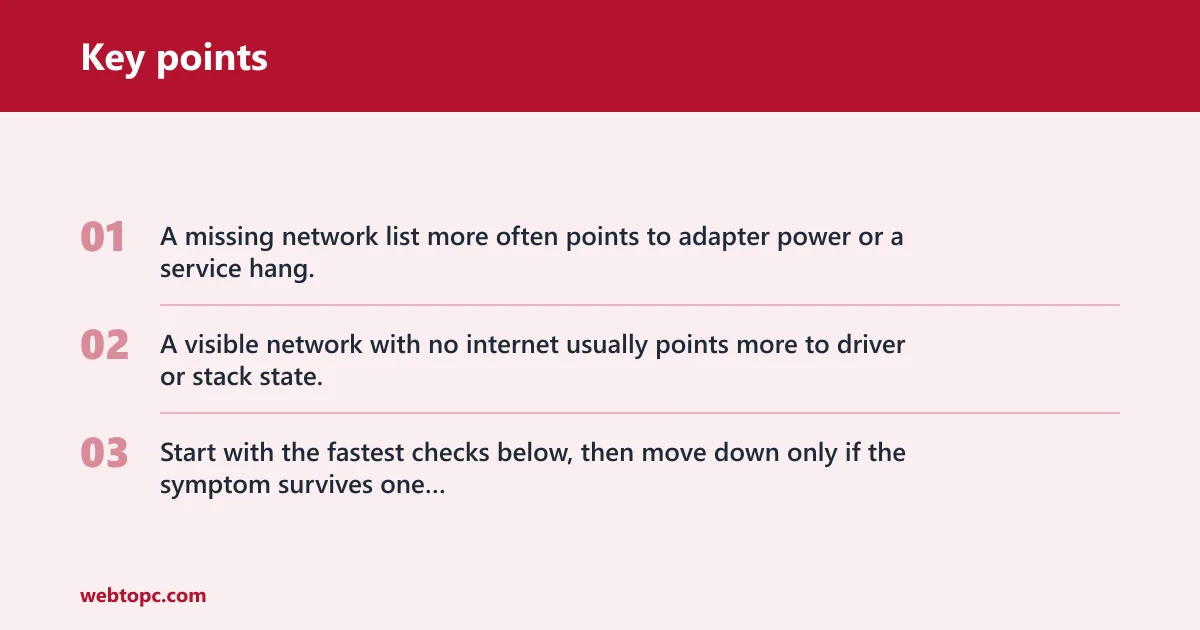
Fix the layer that matches the symptom. A missing network list more often points to adapter power or a service hang. A visible network with no internet usually points more to driver or stack state. Start with the fastest checks below, then move down only if the symptom survives one full sleep cycle.
Diagnosis matrix
| Sleep state or trigger | Symptom after wake | Likely cause | Quickest test | Exact Windows setting to change | Reversible? |
|---|---|---|---|---|---|
| Lid-close sleep | No Wi-Fi networks visible | Adapter lost power during suspend | Open Device Manager and check whether the adapter is enabled | Device Manager > Network adapters > your Wi‑Fi adapter > Properties > Power Management > clear “Allow the computer to turn off this device to save power” | Yes |
| Manual sleep | Networks appear, but reconnect fails | Driver state or WLAN AutoConfig hang | Restart the WLAN AutoConfig service and retry | services.msc > WLAN AutoConfig > Restart, then set Startup type to Automatic | Yes |
| Hibernate | Wi-Fi disappears or shows “no internet” | Hybrid wake state or stale driver session | Disable Fast Startup, then test another hibernate cycle | Control Panel > Power Options > Choose what the power buttons do > Change settings that are currently unavailable > turn off Fast Startup | Yes |
| Full shutdown | Wi-Fi works after restart, then fails after later sleep | Shutdown path is different from sleep path | Compare wake behavior after restart versus sleep | Use the Device Manager power setting and wireless power plan first, then Fast Startup if shutdown tests are part of the failure | Yes |
What to check first
Check the Wi‑Fi adapter entry in Device Manager, your current driver version, and the active power plan. If the machine is a Windows 11 laptop with Modern Standby, expect the Power Management tab to be missing on some models. That does not mean the problem is not power related.
- Open Device Manager and expand Network adapters.
- Find your wireless adapter, such as Intel Wi‑Fi 6 AX201 or Realtek 8822CE.
- Open Settings and confirm whether the problem happens after sleep, hibernate, lid close, or shutdown.
- Open Control Panel > Power Options so you can change wireless power behavior if the plan exposes it.
- Open
services.mscso you can restart WLAN AutoConfig if the adapter is present but networking stays stuck. - Keep the laptop maker’s support page handy in case the Windows Update driver is older than the vendor package.
Is the adapter powered off?
Power management can tell Windows to cut power to the Wi‑Fi adapter during sleep, which fits the “no networks visible” case after wake. On many systems, the fastest fix is to clear the adapter power-off option in Device Manager and then test one sleep cycle. That takes under a minute and is reversible.
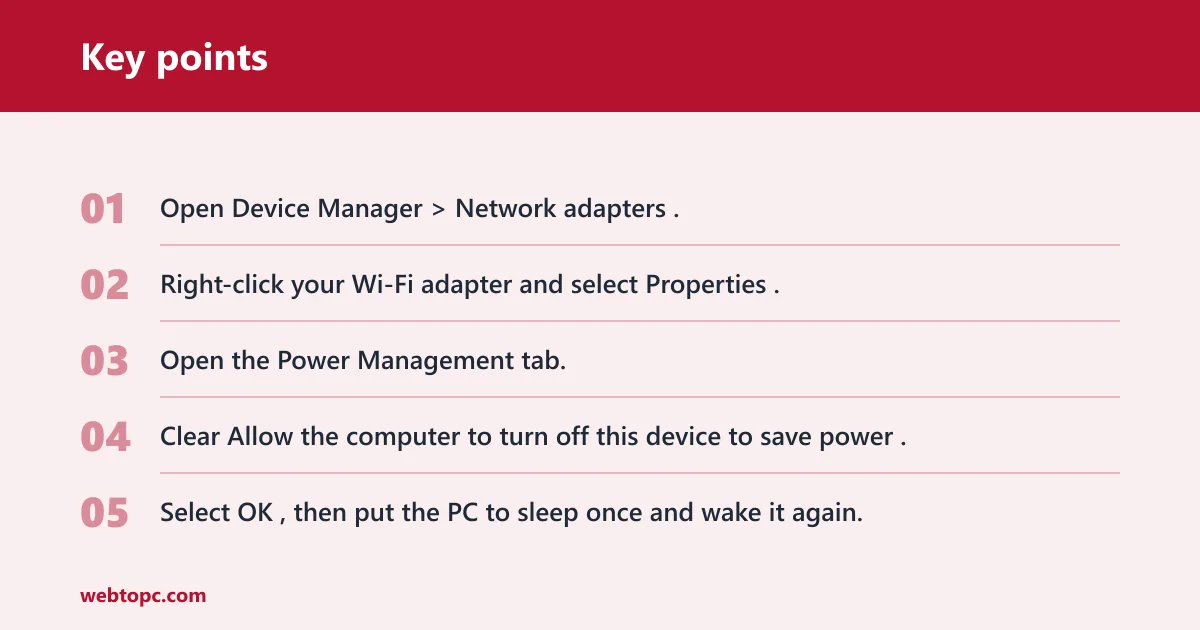
- Open Device Manager > Network adapters.
- Right-click your Wi‑Fi adapter and select Properties.
- Open the Power Management tab.
- Clear Allow the computer to turn off this device to save power.
- Select OK, then put the PC to sleep once and wake it again.
If the tab is missing, that is common on many Windows 11 laptops. On those systems, Windows may manage the adapter through Modern Standby, so the missing tab does not end the diagnosis. Continue with wireless adapter power settings and Fast Startup before changing more than one thing at once.
Wireless adapter power setting
Open Control Panel > Power Options > Change plan settings > Change advanced power settings, then expand Wireless Adapter Settings > Power Saving Mode. Set On battery and Plugged in to Maximum Performance where available. That setting is the best next step if the adapter wakes slowly or drops off only on battery.
Suppose a laptop wakes to a blank Wi‑Fi list on battery power, but the same unit reconnects while plugged in. That pattern points to adapter power behavior, not a dead router. Change only the wireless power setting first, then retest after one lid-close cycle.
Does Fast Startup matter?
Fast Startup is a partial hibernate state, so shutdown tests can mislead you if the adapter or driver state survives in a bad condition. If Wi‑Fi fails after shutdown but works after a true restart, Fast Startup is a strong suspect. Turn it off for diagnosis before you change the driver.
- Open Control Panel > Power Options > Choose what the power buttons do.
- Select Change settings that are currently unavailable.
- Clear Turn on fast startup.
- Save changes and test a full shutdown, then a later sleep cycle.
Is the driver failing?
If the adapter stays present but reconnects are flaky, check the driver version next. A recent driver update can break wake behavior, and an older stable driver can be the right test if the issue began after a change. Use the laptop maker’s support page first, then the chipset vendor page if the laptop maker only mirrors older packages.
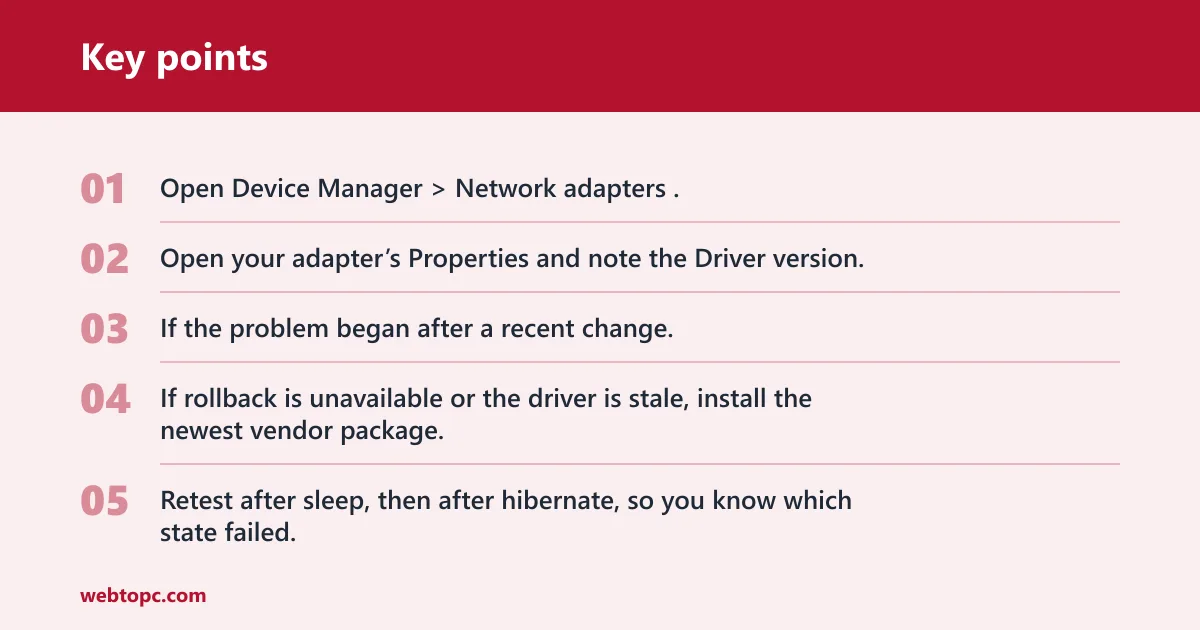
- Open Device Manager > Network adapters.
- Open your adapter’s Properties and note the Driver version.
- If the problem began after a recent change, select Roll Back Driver if the button is available.
- If rollback is unavailable or the driver is stale, install the newest vendor package.
- Retest after sleep, then after hibernate, so you know which state failed.
Windows Update can supply a working driver, but it may trail the vendor package. If the adapter is an Intel Wi‑Fi 6 AX201 or a Realtek 8822CE model, the vendor package usually gives you a clearer driver revision trail. Keep one change per test cycle so you can tell whether the driver or the power setting fixed it.
Is WLAN AutoConfig stuck?
If Wi‑Fi networks are missing or the adapter looks fine but the system will not reconnect, WLAN AutoConfig may be hung. This is a service problem, not an adapter-power problem. Restarting the service is a common next check, and it is worth doing before a full network reset.
- Open
services.msc. - Find WLAN AutoConfig.
- Set Startup type to Automatic if needed.
- Select Restart.
- Wake the PC again and look for networks.
If you want a scriptable workaround, open PowerShell and restart the adapter after wake:
Get-NetAdapter
Restart-NetAdapter -Name "Wi-Fi"
The adapter name may differ, so match the exact name shown by Get-NetAdapter. That does not fix the root cause, but it can confirm whether the interface itself is recovering.
Should you reset the network?
Network reset is often treated as a last-resort fix. It reinstalls adapters and clears network state, so it may help with a stubborn wake issue after other settings fail, and Wi‑Fi usually needs to be rejoined afterward. Use it when the adapter, driver, and WLAN service checks all fail across more than one sleep cycle.
- Open Settings > Network & Internet > Advanced network settings > Network reset.
- Select the reset option and confirm.
- Reboot when Windows asks.
- Reconnect to your Wi‑Fi network and re-enter the password.
If the problem returns after a reset, stop changing power settings and check BIOS or firmware updates, plus any vendor wireless utility that manages radio state. That is the point where the fault may be below Windows.
Wi-Fi diagnosis matrix
Use this matrix to match the sleep state to the fix. It separates lid-close sleep from manual sleep, hibernate, and full shutdown so you do not treat every wake failure the same way.
| State | What to watch for | Best first fix | Next step |
|---|---|---|---|
| Lid-close sleep | Adapter disappears or networks vanish | Device Manager power-off setting | Wireless Adapter Settings > Maximum Performance |
| Manual sleep | Reconnect hangs after wake | WLAN AutoConfig restart | Driver update or rollback |
| Hibernate | Wake works once, then fails again | Fast Startup off | Driver rollback if the issue began after an update |
| Full shutdown | Wi‑Fi only breaks after shutdown tests | Disable Fast Startup | Vendor driver package |
Common mistakes
Do not change power settings, driver packages, and network reset all at once. That makes the result impossible to read. Change one layer, then test sleep, wake, and reconnect again.
- Skipping the adapter power setting and going straight to reset.
- Assuming the missing Power Management tab means nothing can be changed.
- Testing only one wake cycle instead of several.
- Ignoring the difference between sleep-only failure and shutdown-only failure.
- Stopping before checking BIOS, firmware, or a vendor wireless utility when the same fault repeats.
A common first-time mistake is to see a working connection after a restart and assume the issue is gone. If sleep still breaks Wi‑Fi twice in a row, the root cause is still present. Keep the same test path until the adapter survives multiple cycles.
Frequently asked questions
Why does Wi-Fi stop working after my laptop wakes from sleep?
The usual split is adapter power loss, a driver that fails to resume, or WLAN AutoConfig hanging. Start with Device Manager power management, then test the wireless power plan, then restart WLAN AutoConfig in services.msc. That order isolates the layer without changing every setting at once.
How do I stop Windows from turning off my Wi-Fi adapter during sleep?
Open Device Manager > Network adapters > your Wi‑Fi adapter > Properties > Power Management and clear Allow the computer to turn off this device to save power. If the tab is missing, use Control Panel > Power Options > Advanced settings and set Wireless Adapter Settings > Power Saving Mode to Maximum Performance.
Why does Wi-Fi disappear after sleep on Windows 11?
Windows 11 laptops often use Modern Standby, so the adapter can be managed differently during wake. If the network list disappears, check the adapter power setting first, then restart WLAN AutoConfig. If that still fails, compare behavior after sleep and hibernate so you know whether the driver or power state is the issue.
What should I change in Device Manager for sleep-related Wi-Fi problems?
Open the Wi‑Fi adapter’s Properties and clear Allow the computer to turn off this device to save power. If the adapter has a Power Management tab, that is the first setting to change. If the tab is missing, move to the wireless power plan and then the driver version.
Does Fast Startup cause Wi-Fi issues after sleep or shutdown?
Yes, especially when shutdown tests behave differently from sleep tests. Turn it off at Control Panel > Power Options > Choose what the power buttons do, then test a true shutdown and a later sleep cycle. If wake behavior changes, the partial-hibernate state was part of the problem.
Should I update or roll back my Wi-Fi driver after sleep problems?
Do both in the right order. If the issue began after a driver or Windows update, use Roll Back Driver in Device Manager first. If that button is unavailable, or the driver is clearly old, install the latest package from the laptop maker or chipset vendor and retest after sleep and hibernate.
