

How to Check What Is Slowing Down My PC
Start with Task Manager: if CPU, Memory, Disk, or GPU stays high while the PC feels slow, that component is often the bottleneck. Guessing wrong wastes time and can send you to the wrong fix. This guide gives the fastest no-guess path from symptom to cause in Windows.
What you’ll need
- Task Manager, opened with Ctrl+Shift+Esc
- Access to Performance and Startup apps in Task Manager
- Resource Monitor, opened from Task Manager
- Windows Security
- Settings > System > Storage
- Admin access if you need to run Windows Memory Diagnostic with mdsched.exe
What is slowing down my PC?
Start with the symptom pattern, then check the matching Windows screen. A slow boot points to startup load. Slow apps point to CPU, RAM, or disk pressure. A PC that feels slow everywhere, even on the desktop, often has storage pressure, malware, heat, or a failing component. Windows can slow down for several reasons, including low free space, too many startup apps, outdated software, and hardware that no longer keeps up with current needs.
Separate sudden from gradual
A sudden slowdown is more likely to be a new startup item, update, malware, or a drive problem. A gradual slowdown is more often storage pressure, aging hardware, or a growing list of background apps. Do not treat a brief spike the same as a persistent bottleneck.
Decide where you feel it
If the slowdown happens at sign-in, focus on startup apps. If only one program is slow, focus on that app and the process list. If everything lags, start with Task Manager and storage checks.
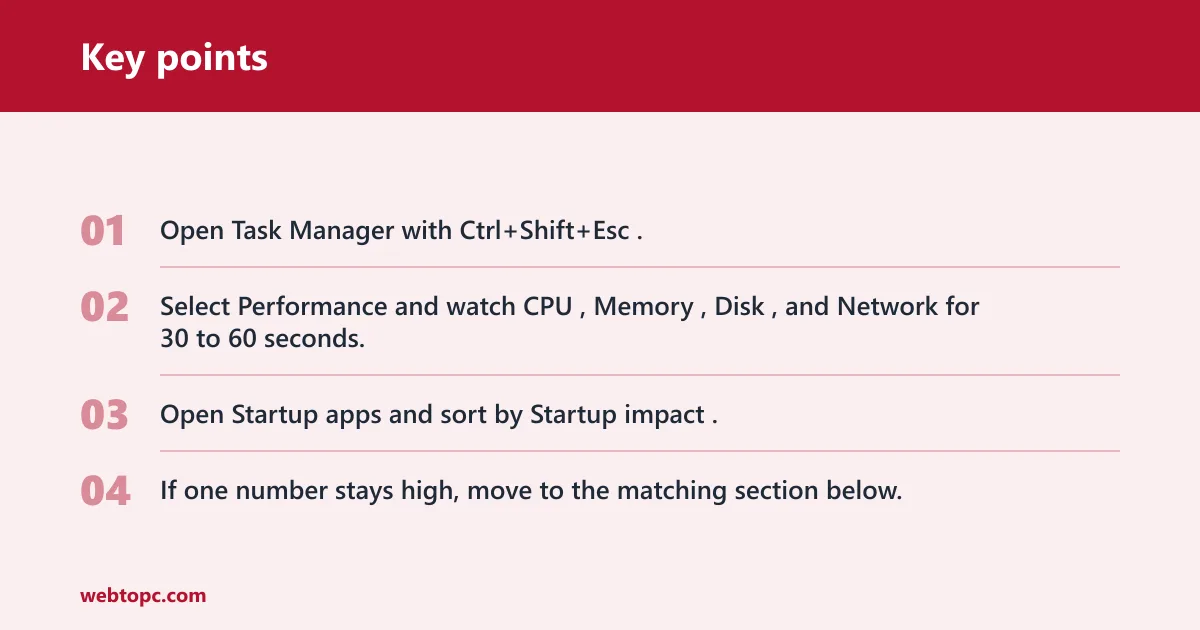
- Open Task Manager with Ctrl+Shift+Esc.
- Select Performance and watch CPU, Memory, Disk, and Network for 30 to 60 seconds.
- Open Startup apps and sort by Startup impact.
- If one number stays high, move to the matching section below.
How to check why computer is slow
Use Task Manager first, then Resource Monitor if the cause is not obvious. Resource Monitor shows CPU, memory, disk, and network use in one place. If CPU, memory, or disk stays high, something may be wrong.
Check Task Manager first
Look for sustained load, not a quick jump. A brief CPU spike while an app opens is usually normal. Constant high CPU, memory near full, or disk near 100 percent points to a bottleneck.
Read the right tab
- CPU: persistent high use means heavy processing or too many background tasks.
- Memory: near-max use means too little RAM or heavy multitasking.
- Disk: 100 percent or near-constant activity often points to storage pressure.
- Network: high use can mean sync, updates, streaming, or a cloud app pulling data.
Check startup load
High startup impact items are often a cause of slow boot. Disable only obvious nonessential entries such as chat apps, launchers, and updaters. Leave security software and drivers alone unless you know exactly what they do.
- In Task Manager, open Performance and note the highest sustained percentage.
- Select Startup apps.
- Sort by Startup impact.
- Disable one obvious nonessential app at a time, then restart and recheck.
Use Resource Monitor for detail
If Task Manager shows a problem but not the source, Resource Monitor gives the next level of detail. Open it from the Performance tab in Task Manager. It shows which process is actually driving CPU, memory, disk, or network use, which helps separate one bad app from a system-wide issue.
Match the symptom to the process
Sort by the busiest column. A browser, cloud sync tool, search indexer, or installer can dominate the system even when the summary numbers look only moderately high. If one process keeps returning to the top, that is your next target.
Say your laptop feels slow only after opening a browser with 18 tabs. Task Manager may show moderate memory use, but Resource Monitor can reveal that one browser profile is the real load. Close the profile, then reopen the browser with a fresh profile to compare.
- In Task Manager, open Performance.
- Select Open Resource Monitor.
- Check the CPU, Memory, Disk, and Network lists.
- Find the process that stays busy the longest.
Why is my laptop slow?
Laptop slowdowns often come from power limits or heat, not just software. Battery saver, unplugged power mode, and thermal throttling can reduce performance even when Task Manager looks ordinary. Check whether the charger is connected, whether the power plan is limiting speed, and whether the system feels hot or the fan is running hard.
Check power mode first
If the laptop is unplugged, some systems reduce CPU speed to extend battery life. Battery saver can do the same. A laptop that feels fine on AC power but slow on battery usually has a power-limit issue, not a general Windows problem.
Check for heat limits
Heat can make the CPU slow itself down to protect the hardware. That can happen during gaming, video calls, or even a blocked vent. If performance drops after several minutes rather than immediately, temperature is a likely factor.
- Confirm the charger is connected and working.
- Open Settings > System > Power & battery.
- Set Power mode to the most performance-focused option available.
- Recheck Task Manager while the laptop is plugged in.
Slow PC diagnosis matrix
This table gives the fastest next check for each pattern. Use the Next action column, not guesswork. The practical cutoffs below are unified: sustained CPU, memory, or disk usage is a problem, and low free storage space can slow the device.
| Symptom | Where to look in Windows | What normal looks like | What bad looks like | Next action |
|---|---|---|---|---|
| Slow boot | Task Manager > Startup apps | Low or medium startup impact; desktop loads quickly | Several high impact items; sign-in takes a long time | Disable one obvious nonessential startup app, then restart |
| Apps open slowly | Task Manager > Performance | CPU, Memory, Disk stay below 80 percent most of the time | One resource stays above 80 percent while the app opens | Open Resource Monitor and find the process using that resource |
| Desktop feels laggy | Task Manager + Windows Security | Low load at idle; no storage warning | High load at idle, or storage warning in Device performance & health | Run a malware scan, then check storage space |
| Laptop slow on battery | Settings > System > Power & battery | Performance stays close to plugged-in speed | Speed drops sharply on battery or in battery saver | Plug in the charger and change the power mode |
| Looks fine but still slow | Windows Security + Resource Monitor | No warning, no single process dominates | Normal summary numbers, but the system still stalls | Check heat limits, failing storage, or a browser profile issue |
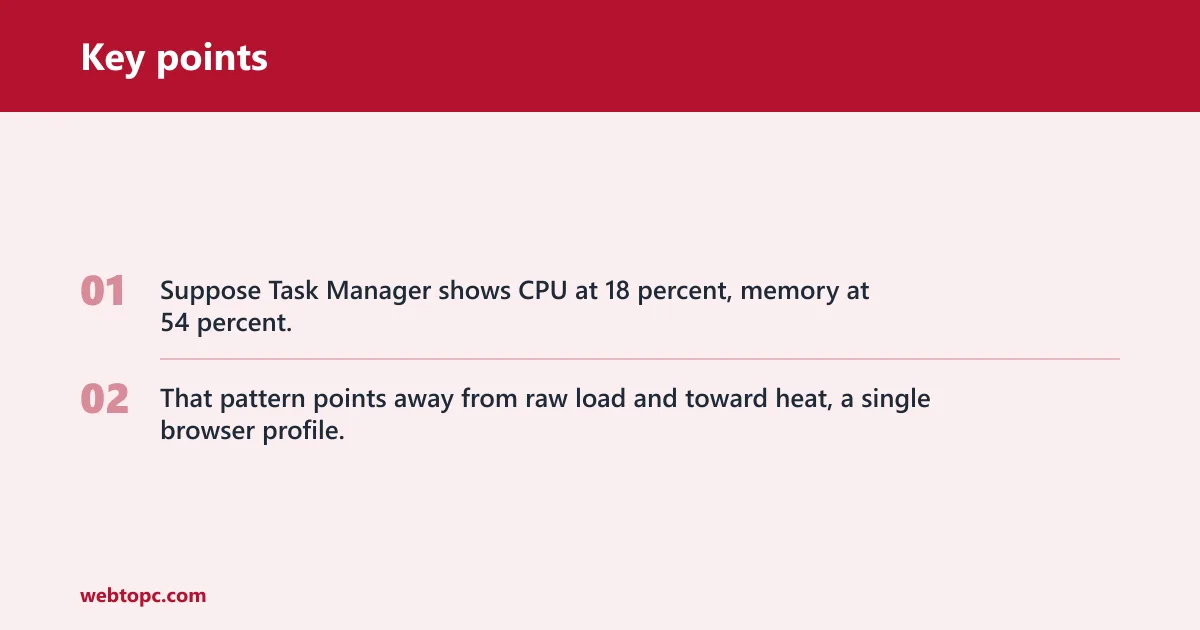
Suppose Task Manager shows CPU at 18 percent, memory at 54 percent, and disk at 2 percent, yet the PC still stutters every few seconds. That pattern points away from raw load and toward heat, a single browser profile, or a drive problem that needs a deeper check.
What to do if pc is slow
If the bottleneck is not obvious, move from software cleanup to system checks. Windows Security can show storage warnings in Device performance & health, and Storage Sense can remove temporary files. Limited storage space can also slow the device.
Check storage and cleanup
Low free space often slows updates, app launches, and browser caching. If the drive is nearly full, free space first. If the system drive is already tight, cleanup is usually faster than chasing individual apps.
Run a malware scan
Malware can consume CPU and disk resources and reduce performance. A Windows Security quick scan is part of standard diagnosis and should happen before deeper repairs if the slowdown is unexplained.
- Open Settings > System > Storage.
- Run Storage Sense to remove temporary files.
- Open Windows Security > Device performance & health and check for storage warnings.
- Open Virus & threat protection and run a Quick scan.
If that didn’t work, try this next
If Task Manager and cleanup do not explain the slowdown, test the hardware path. Memory problems can look like random lag, crashes, or app hangs. Failing storage can also look normal in Task Manager while the system pauses. Outdated software can slow the device, so install Windows updates and optional driver updates next.
Test memory
Windows Memory Diagnostic checks for memory problems. Launch it with mdsched.exe, then choose Restart now and check for problems. This is a restart-based test, so save work first.
Update Windows and drivers
Use Start > Settings > Windows Update > Check for updates. If the status says You're up to date, open Advanced options > Optional updates and install available driver updates. Outdated software can slow a Windows device.
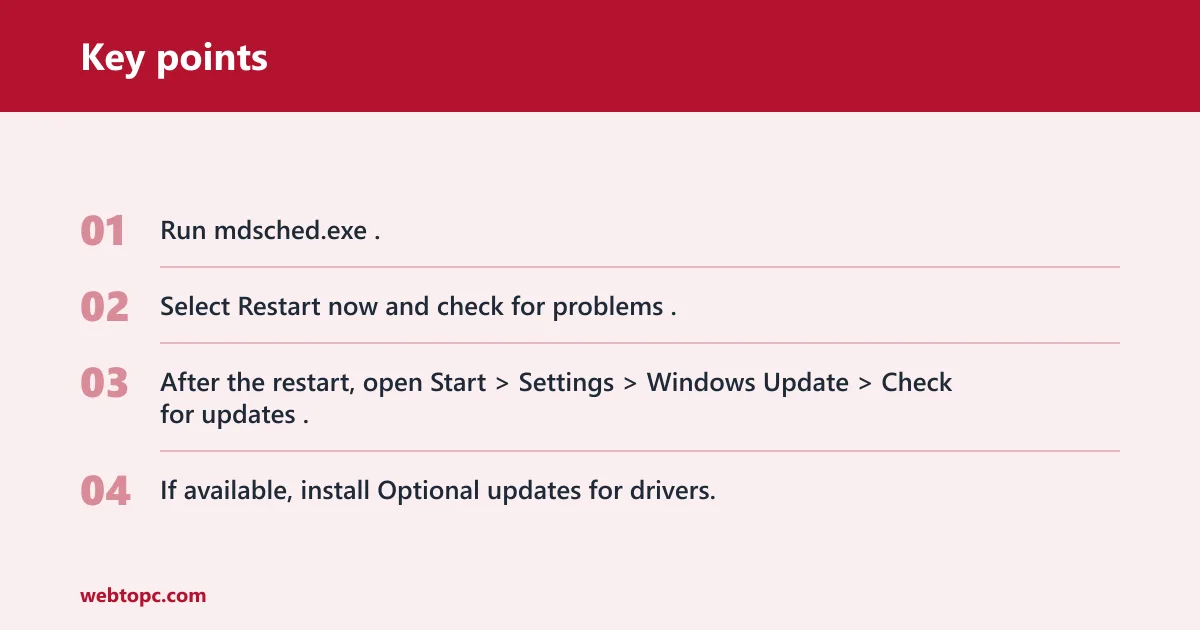
- Run mdsched.exe.
- Select Restart now and check for problems.
- After the restart, open Start > Settings > Windows Update > Check for updates.
- If available, install Optional updates for drivers.
Common mistakes
Do not treat a short spike as the cause. A spike during app launch is normal. Do not stop at Task Manager if the PC still feels slow; Resource Monitor can show the real process. Do not ignore storage space, because low free space alone can slow Windows.
Another mistake is assuming every slow PC needs the same fix. A desktop with a nearly full HDD, a laptop on battery saver, and a browser profile with too many extensions need different next steps. Do not skip malware checks, startup items, or RAM testing when the pattern fits.
- Use the symptom pattern first, then the tool.
- Use sustained readings, not one-second spikes.
- Check power mode on laptops before replacing hardware.
- Check free space before blaming the CPU.
Frequently asked questions
What is slowing my pc down?
Open Task Manager with Ctrl+Shift+Esc and check whether CPU, Memory, Disk, or Network stays high. If none does, use Resource Monitor from the Performance tab, then check storage space in Settings > System > Storage and run a quick malware scan in Windows Security.
What to do if computer is slow
Check Task Manager, clean up storage, and scan for malware first. If the drive is nearly full, use Storage Sense in Settings > System > Storage. If startup is the issue, disable only obvious nonessential items in Startup apps. If the slowdown persists, install updates and test RAM.
What to do if pc is slow: follow the ladder: startup apps
Follow the ladder: startup apps, storage cleanup, malware scan, updates, memory test. If the machine still lags after those checks, the bottleneck is more likely hardware aging, a failing drive, or a laptop power limit. Identifying the bottleneck first is the fastest path, and upgrading from HDD to SSD is often the biggest hardware step.
