
How to Remote Desktop to Windows 11 Home

Windows 11 Home can connect to other PCs with Remote Desktop, but it cannot accept incoming RDP connections. To remote into a Home PC, you need Windows 11 Pro on that PC or a third-party remote access tool. Pick the wrong path, and you waste time when you need the machine most.
This guide shows which choice fits your device mix and budget, and how each option works.
Can Windows 11 home host remote Desktop?
No. Windows 11 Home can be the client device that connects out, but it cannot host Microsoft Remote Desktop for incoming connections. Microsoft says the remote PC must run Windows Pro edition, and Windows 11 Home is limited to client use, not being the accessed computer. (Microsoft Support)
What Home can do as a client
From a Windows 11 Home PC, you can connect to another computer that allows Remote Desktop. That includes another Windows PC running Pro, or another supported host on a network that accepts RDP connections. The Home machine is the viewer and controller in that setup, not the target.
What Pro adds on the remote PC
Windows 11 Pro adds the host-side Remote Desktop feature. That is the missing piece for built-in RDP. If the computer you want to reach is still on Home, the Remote Desktop toggle will not appear in the normal settings path because that edition does not support hosting.
Why the Remote Desktop toggle is missing on Home
The missing toggle is usually not a glitch. It points to an edition limit, not a setup mistake. Before changing network settings or reinstalling anything, check the edition first. Microsoft instructs users to look under Settings > System > About.
📊 Microsoft says Windows 11 Home can be the client device, not the host. Source: Microsoft.
How to check your edition and turn on RDP
Start with the Windows edition, because that decides whether built-in Remote Desktop hosting is available at all. If the remote PC is Windows 11 Pro, you can turn on Remote Desktop in Settings. If it is Home, stop there and choose a different path.
Open About settings. On the PC you want to reach later, go to Settings > System > About. Microsoft uses this path to show the Windows edition, which is the fastest way to confirm whether the PC can host Remote Desktop.
Check the edition line. Look for Windows 11 Pro, Home, Educational, or Enterprise. For built-in RDP hosting, the remote PC must be on Pro according to Microsoft, and Winaero notes that Pro, Educational, or Enterprise is required for RDP access.
Turn on Remote Desktop. If the PC is Pro, go to Settings > System > Remote Desktop and enable it. This is the normal host-side switch for Windows 11 Pro. Leave it off only if you do not want the PC accepting incoming remote sessions.
Confirm the account permissions. Make sure the user account you plan to sign in with has permission to connect. If more than one person needs access, add the permitted users before leaving the PC unattended.
Note the PC name. Microsoft says to note the PC name before connecting later. You will enter that name in the client app or connection dialog when you reach the other device.
The old Control Panel route still exists on many systems, and it can help if you are used to the classic interface. You can also manage Remote Desktop from the classic Control Panel in some builds, but the Settings path is the cleaner starting point. Use the Settings path first, then fall back only if a policy or older workflow requires it.
A common first-timer mistake is checking the laptop used for control instead of the PC that will be accessed. Say your main desktop is Windows 11 Home and your travel laptop is Windows 11 Pro. The laptop can connect out, but the Home desktop still cannot host built-in Remote Desktop.
What should you use instead if the PC stays on Home?
If the remote PC stays on Windows 11 Home, built-in RDP is off the table for hosting. The practical workaround is third-party remote access software. That is usually the best answer when you want occasional personal access, cross-platform control, or a simpler setup than upgrading the remote PC.
Third-party remote access software
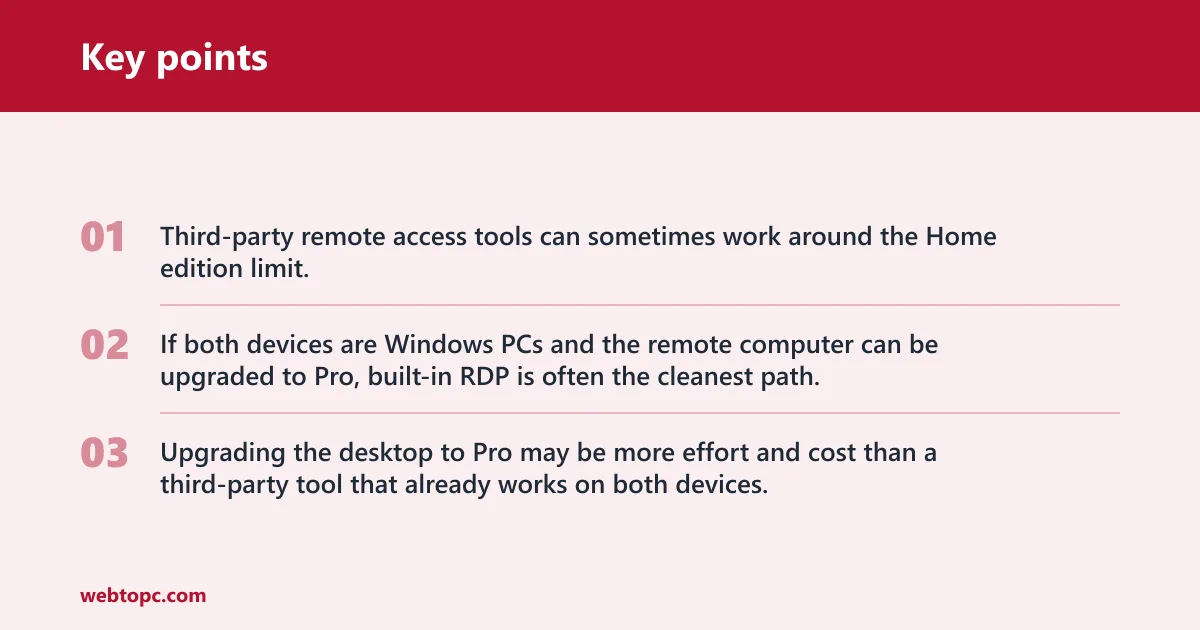
Third-party remote access tools can sometimes work around the Home edition limit. These products commonly support multiple platforms, which matters if you want to connect from more than one device type. They are usually the simplest choice when the remote PC is Home and you do not want to change its edition.
When a Windows-to-Windows tool makes sense
If both devices are Windows PCs and the remote computer can be upgraded to Pro, built-in RDP is often the cleanest path. It uses Microsoft’s own remote access protocol and the standard Remote Desktop Connection client on Windows. This is a good fit for a home office PC that should be reachable from another Windows machine on a regular basis.
When cross-platform access matters more than built-in RDP
If you need to reach the same PC from Android, iPhone, iPad, macOS, and a Windows laptop, a third-party tool can reduce friction. One account, one app family, and one host install is often easier than mixing RDP with separate mobile and desktop clients. That tradeoff matters most for family use or occasional access from the road.
Suppose the remote PC is a family desktop on Windows 11 Home, and you only need to grab a file from Android once or twice a month. Upgrading the desktop to Pro may be more effort and cost than a third-party tool that already works on both devices.
How do you connect from Windows, Android, and Apple devices?
The client device can be any Windows edition or another operating system. Microsoft says Windows 11 Home can be the client device, not the host. The app or client changes by platform, but the process stays the same: enter the PC name, then sign in with the correct account after the connection opens.
From a Windows PC with remote desktop connection
On Windows, the classic client is Remote Desktop Connection. Start it, type the remote PC name, and connect. After the session opens, sign in with the account on the remote PC. This client is the usual choice for Windows-to-Windows access because it is built into Windows desktop workflows.
Open Remote Desktop Connection. Launch the desktop client on the Windows PC you are using to connect. It is the standard Windows client for RDP sessions.
Enter the PC name. Type the remote PC name exactly as shown in its Remote Desktop settings. The name matters because it is what the client uses to find the target machine.
Connect and sign in. Complete the connection, then sign in with the account allowed on the remote PC. Keep the password current, because a saved username alone is not enough for a successful logon.
From Android with Microsoft remote Desktop
Microsoft says Android users should open the Remote Desktop app from Google Play. That app is Microsoft-supported and is the right client for Android when the remote PC accepts RDP. It works best when the host is Windows 11 Pro and the PC name has already been recorded.
Install the Android app. Get the Remote Desktop app from Google Play. This is the Microsoft-supported route for Android devices.
Add the PC name. Enter the name of the remote PC in the app. Use the name shown in the host’s Remote Desktop settings to avoid connection failures.
Sign in securely. Use the account allowed on the remote PC and complete the sign-in prompt. If the host is not Pro, the app will not make a Home PC accept incoming RDP connections.
From macOS and iPhone with Microsoft’s Windows App
Microsoft says macOS or iOS users should open Windows App. That is the current Microsoft-supported client path for Apple devices. It still depends on the same host-side rule: the remote PC must support incoming RDP, which means Pro on the Windows machine you want to reach.
Install Windows App. Use Windows App on macOS or iOS. That is the client Microsoft points Apple users to now.
Add the remote PC. Enter the PC name in the app. If you copied the name from the host’s Remote Desktop settings, you avoid guessing and reduce connection errors.
Complete account sign-in. Finish the login with the allowed account. If the target PC is still on Home, the app may connect to other services, but it will not turn Home into an RDP host.
Remote Desktop decision table
This table maps the most common Windows 11 Home situations to the fastest workable path. It also shows whether built-in RDP is possible, because that is the question most people need answered before they spend time on setup.
| Scenario | Best option | Required setup steps | Likely cost category | Built-in RDP possible? |
|---|---|---|---|---|
| Home PC, occasional personal access from Android | Third-party remote access software | Install the host app on the Home PC, sign in on Android, allow unattended access if needed | Free tier or subscription, depending on the tool | No |
| Home PC, connect from a Windows laptop at home | Upgrade the remote PC to Pro if you want Microsoft RDP | Upgrade the PC, enable Remote Desktop in Settings > System > Remote Desktop, note the PC name | One-time Windows edition upgrade | Yes, after Pro upgrade |
| Home PC, family member needs cross-platform access | Third-party remote access software | Install the same tool on the PC and each client device, create permissions for the right users | Free tier or subscription | No |
| Windows-to-Windows office-style connection | Built-in RDP on a Pro host | Confirm Pro on the host, enable Remote Desktop, record the PC name, connect with Remote Desktop Connection | No extra app cost if Windows already includes the client | Yes |
| Home PC, just need short-term file or app access while away | Third-party remote access software | Install the tool, verify unattended access, test from the away device before travel | Free tier if available, otherwise subscription | No |
If you only remember one thing, remember this checklist:
- Check the edition first. Go to Settings > System > About on the PC you want to reach.
- Use Pro for built-in RDP hosting. Windows 11 Home cannot host incoming Remote Desktop connections.
- Save the PC name. You need it in the client app or connection dialog later.
- Keep NLA on. Leave Network Level Authentication enabled for normal use.
- Choose third-party tools for Home. If the remote PC stays on Home, a remote access app is the practical fix.
Security settings to check before you connect
Remote access works better when the basics are right. Keep Network Level Authentication on for normal connections, use the correct account and password, and only change compatibility settings when you have a specific older-system requirement. For routine use, NLA should remain enabled.
Keep Network Level Authentication
Network Level Authentication adds a security check before the full desktop session starts. It should stay enabled in normal setups. Only consider disabling Network Level Authentication for legacy compatibility with older XP or Vista systems, and only when the older device truly requires it.
Use the correct account and password
Even with the right PC name, the connection will fail if the sign-in account is not allowed or the password is wrong. Check that the account exists on the remote PC and that it has permission to use Remote Desktop. If multiple people need access, add them before the PC is left unattended.
Picture a spare home PC that sits on Windows 11 Home and sleeps between uses. If you need to get in from a Mac while away, a third-party remote access app is the faster answer. If you are setting up a workstation that stays on Windows 11 Pro, built-in RDP is often the cleaner long-term choice.
Frequently asked questions
How can I remote desktop to Windows 11 Home?
You can use Windows 11 Home as the device that connects out, but not as the machine that accepts incoming RDP. To reach a Home PC itself, you need Windows 11 Pro on that PC or a third-party remote access tool. The edition check in Settings > System > About should come first.
Can Windows 11 Home host a Remote Desktop session?
No. Windows 11 Home cannot host Microsoft Remote Desktop as the remote PC. Microsoft says the remote computer must run Windows Pro edition for built-in RDP hosting. If the target stays on Home, use a third-party remote access tool instead.
What is the easiest workaround for Windows 11 Home remote access?
The easiest workaround is usually third-party remote access software. It avoids the edition limit on Home and often works across Windows, Mac, Linux, iOS, and Android. That makes it a strong choice for occasional access, family use, or cross-platform control without upgrading the remote PC.
Do I need Windows 11 Pro to use remote Desktop?
You need Windows 11 Pro on the remote PC if you want built-in Remote Desktop hosting. The client device can be any Windows edition or another operating system. In plain terms, Pro is required on the machine being accessed, not on every device used to connect.
Can I connect to a Windows 11 Home PC from another device?
Yes, if the other device is connecting to a supported remote access service or to another PC that allows RDP. But a Windows 11 Home PC cannot act as the RDP host itself. For a Home computer, a third-party remote access app is the direct answer.
What app should I use to remote into Windows 11 Home from Android?
Microsoft says Android users should open the Remote Desktop app from Google Play, but that app only works when the target PC allows incoming RDP. If the remote PC is Windows 11 Home, use third-party remote access software instead. Home can be the client device, not the host.
Why is Remote Desktop missing on Windows 11 home?
It is missing because Windows 11 Home does not include the host feature for built-in Remote Desktop. The toggle appears on Windows 11 Pro under Settings > System > Remote Desktop. If you do not see it, check Settings > System > About before changing anything else.
What are the best alternatives to RDP for Windows 11 Home?
Third-party remote access tools are the main alternative. They are especially useful when the remote PC stays on Home, when you need cross-platform access, or when you only want occasional personal control from a phone or tablet. RemotePC and similar tools are the usual starting point.