Why Is It Important to Update Windows Regularly?

Install Windows security updates as soon as they are available. Quality updates can wait a few days, but feature updates should wait until compatibility looks stable. Each delay leaves more vulnerabilities exposed, adds fix backlog, and can turn one update into a larger, more disruptive install later. This guide explains which Windows updates matter most on home PCs and when a short delay is reasonable.
Why Windows updates matter
Security patching closes known vulnerabilities
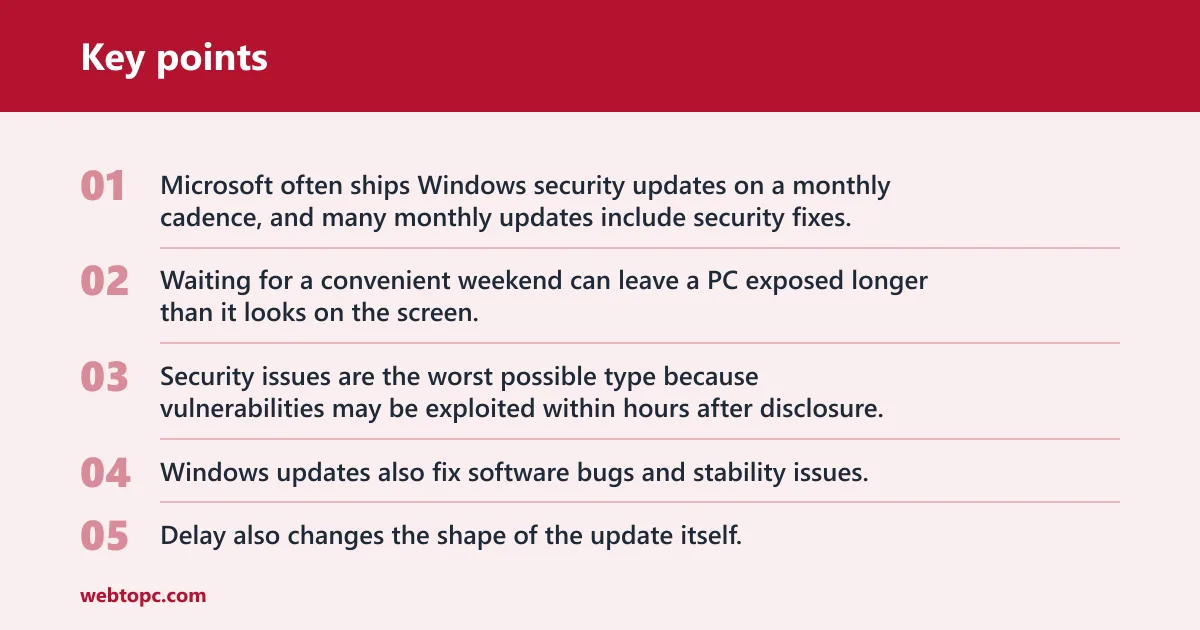
Windows security updates patch known vulnerabilities and shrink the window in which malware or attackers can exploit them. Microsoft often ships Windows security updates on a monthly cadence, and many monthly updates include security fixes. Waiting for a convenient weekend can leave a PC exposed longer than it looks on the screen.
The risk is real. Security issues are the worst possible type because vulnerabilities may be exploited within hours after disclosure. A home PC does not need to be high profile to be targeted; exposed flaws can be scanned automatically once they become known.
Bug fixes reduce crashes and compatibility problems
Windows updates also fix software bugs and stability issues. They help resolve other operating system problems, which can include crashes, broken settings, and incompatibilities with apps or devices. That matters for home users because a small bug today can become a larger support problem after several skipped releases pile up.
Delay also changes the shape of the update itself. A single skipped patch is often manageable. Several skipped patches can mean a larger queue, more restarts, and a longer time spent waiting for the PC to catch up.
Delay makes the update queue larger
Postponing updates does more than leave known flaws open. It also increases bug debt, which means more fixes accumulate before the next maintenance window. When that happens, the eventual install can take longer, require more reboots, and touch more components at once.
That is one reason regular patching is easier than occasional catch-up sessions. Fewer changes in each round means fewer moving parts, and fewer moving parts usually means fewer surprises.
Which Windows updates should you install first?
On a home PC, install security updates and cumulative updates first. Those are the updates that most directly reduce risk and fix known reliability issues. Optional feature updates, preview builds, and driver updates deserve more caution because they can affect compatibility with hardware, apps, or a current project.
Security updates and cumulative updates come first
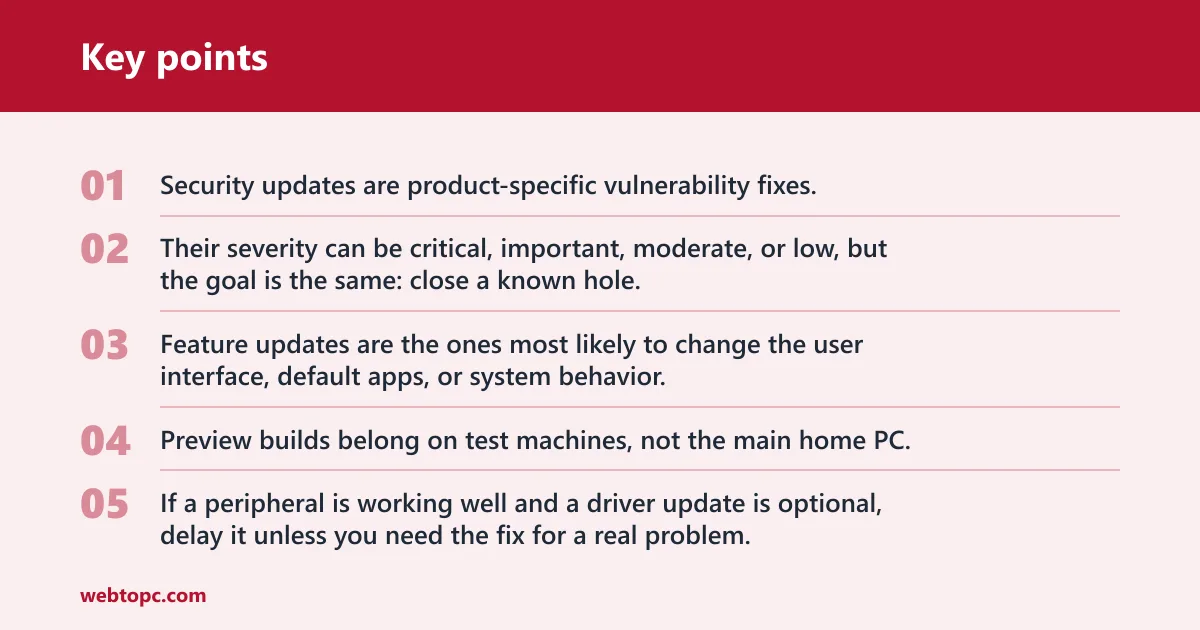
Security updates are product-specific vulnerability fixes. Their severity can be critical, important, moderate, or low, but the goal is the same: close a known hole. Cumulative updates matter too because they bundle several fixes together, including security and reliability changes, so one install can catch a PC up quickly. (Microsoft)
For supported Windows 10 and Windows 11 PCs, installing security or cumulative updates is the normal path most home users should follow. If Windows Update offers a security or cumulative update, the default choice is usually to install it rather than defer it for weeks.
Optional feature updates and previews can wait
Feature updates are the ones most likely to change the user interface, default apps, or system behavior. They are not the same as routine security patching. If a PC is stable and you need it for daily work, waiting until reports and compatibility checks look calm is reasonable.
Preview builds belong on test machines, not the main home PC. They are meant to preview changes before broad release, which is useful for testing but risky for a machine that handles schoolwork, photos, or a remote job.
Driver updates need compatibility checks
Driver updates can help, but they can also break printers, audio devices, Wi-Fi adapters, or graphics behavior if the wrong version lands at the wrong time. If a peripheral is working well and a driver update is optional, delay it unless you need the fix for a real problem.
Suppose a laptop’s touchpad starts missing clicks after a driver update. The safer move is to pause further driver changes, confirm whether the device vendor lists a corrected package, and install only the update that addresses the issue. That is a better plan than rolling in several driver changes at once.
Windows update decision checklist
Use this checklist to separate updates that should land quickly from updates that can wait for a compatibility check. The point is to reduce risk without treating every item as equally urgent.
| Update type | Why it matters | When to delay |
|---|---|---|
| Security updates | Patch known vulnerabilities and reduce malware or hacker exploitation risk. | Only delay briefly if a known compatibility problem is documented for your hardware or app. |
| Cumulative updates | Bundle security and reliability fixes, including bug fixes and operating system corrections. | Delay if another user-reported issue affects your device class, printer, GPU, or VPN app. |
| Driver updates | Can improve hardware support, performance, or device stability. | Delay when the current driver is stable and the update is not tied to a problem you need fixed. |
| Optional feature updates | May add features, interface changes, or larger OS changes. | Wait until your apps, peripherals, and backup plan look ready for a bigger change. |
| Preview builds | Let Microsoft and testers validate changes before broad release. | Delay on a daily-use home PC; use a test machine if you need to evaluate them. |
| Install now vs. wait | Install security and cumulative updates now. Wait on optional, driver, or preview items when compatibility is uncertain. | Wait only for a specific reason, then revisit soon. Do not leave security patches sitting for convenience. |
Why is Windows updating every day?
If Windows seems to update every day, that can be normal. Windows Update may check in the background, retry a failed download, install a small fix, or stage multiple components over several reboots. Defender and Microsoft Store updates can also run separately, so activity may continue even after the main Windows update finishes.
Background checks, downloads, and retries
Some PCs appear busy because Windows is checking for updates, downloading small packages, or retrying something that did not finish cleanly the first time. That is common after a restart or after a network interruption. It does not always mean the PC is stuck.
A stuck update usually repeats the same progress screen, fails with the same error, or never completes after a normal restart. Normal activity is different: it finishes, reboots if needed, and then returns to idle until the next maintenance cycle.
Defender and Microsoft Store updates
Windows updates are only one part of routine maintenance. Microsoft Defender signatures and Microsoft Store apps may update on their own schedule, which can make the system look busier than expected. That is normal on a healthy PC.
Picture a family desktop that shows a small Windows Update notice, then later installs a Defender definition update, then refreshes a Store app. That sequence can look repetitive, but it is still ordinary maintenance rather than one endless update loop.
What happens if you keep delaying updates?
Repeatedly postponing updates can increase exposure time, add backlog, and make the next install more annoying than it needs to be. The system stays open to known flaws for longer, and the eventual catch-up can involve bigger downloads, longer install times, and more restarts. It can also raise the odds of driver or app conflicts showing up all at once.
Longer installs and more restarts
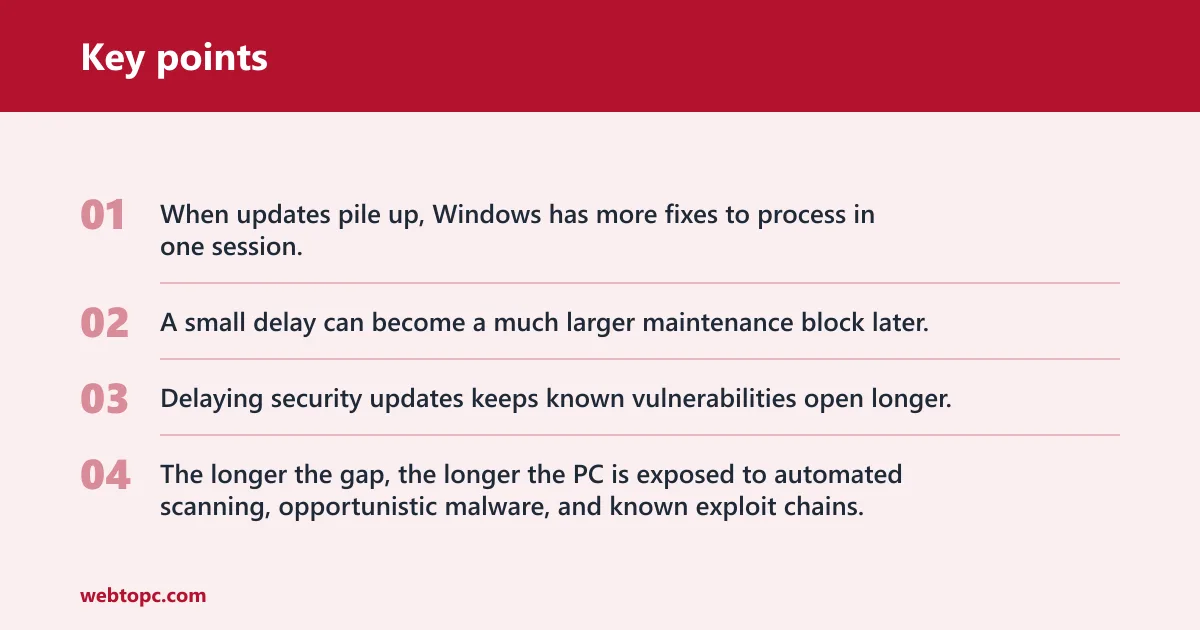
When updates pile up, Windows has more fixes to process in one session. That often means a longer wait at the percentage screen, more post-restart configuration, and a bigger chance that one update depends on another. A small delay can become a much larger maintenance block later.
More exposure to known exploits
Delaying security updates keeps known vulnerabilities open longer. That matters because attackers do not need to guess where the weakness is once it has been disclosed. The longer the gap, the longer the PC is exposed to automated scanning, opportunistic malware, and known exploit chains.
Greater risk of later conflicts
Bug debt has a real cost. If several updates are deferred, the next install may touch more services, drivers, and system files at once, which can make compatibility issues harder to isolate. It is usually easier to identify one problem update than to sort through a month’s worth of changes after the fact.
What about drivers, feature updates, and previews?
These updates are worth a closer look because they are not all equal. Security and cumulative updates should usually go in promptly. Driver updates, feature updates, and preview builds need more judgment because they may solve one issue while introducing another.
When to wait for driver updates
Wait on a driver update if the current version is stable and the device is working well. That is especially true for printers, audio interfaces, Wi-Fi adapters, and graphics cards, where an unexpected driver change can affect daily use. If the device maker lists a fix for a real problem you have, the update becomes more attractive.
When to delay feature updates
Delay a feature update when your PC depends on specific apps, old peripherals, or a predictable workflow. Those larger updates can change settings or behavior enough to matter, especially on a home PC that does more than casual browsing. A short wait gives time for compatibility reports to settle.
Why preview builds belong on test machines
Preview builds are meant for testing upcoming changes before broad release. That is useful if you want early visibility into new behavior, but it is a poor fit for a primary home computer. If the PC must stay dependable, preview builds should stay off it.
- Open Windows Update. Check the update list and separate security or cumulative updates from optional items. That tells you what should move now and what can wait.
- Review update details. Look for driver, feature, and preview labels before installing. If the update changes hardware behavior or the whole operating system, treat it more cautiously.
- Pause only when needed. If a specific compatibility problem exists, use a short pause and revisit the update soon. Do not let a pause turn into a forgotten backlog.
- Install the core fixes first. Apply security and cumulative updates before nonessential items. That reduces exposure to known vulnerabilities while keeping the maintenance session focused.
- Check update history. If a repeated failure appears, note the error and the update name before trying again. That helps separate a one-time glitch from a real compatibility issue.
Frequently asked questions
Why is it important to update Windows regularly?
Regular Windows updates close known security vulnerabilities, fix bugs, and improve system reliability. Delaying them leaves known flaws exposed longer and can make the eventual update larger and more disruptive. For home PCs, the safest habit is to install security and cumulative updates promptly unless there is a specific compatibility reason to wait.
Is it good to update Windows regularly?
Yes. Regular updates are one of the simplest ways to reduce malware risk and avoid stability problems. They also help resolve operating system issues before they stack up. The key is to separate routine security and cumulative updates from optional feature updates, driver changes, and preview builds.
Why do we need to update Windows?
You need updates because software ages quickly once new vulnerabilities are found. Windows updates help patch those holes, fix crashes, and reduce incompatibilities with apps and hardware. Skipping them does not freeze the problem; it usually just delays it until more fixes have piled up.
Why is Windows Update important?
Windows Update is important because it is the main delivery path for security and reliability fixes on current Windows PCs. It brings in the updates that close vulnerabilities and correct operating system problems. That makes it central to keeping a home PC safer, more stable, and less likely to build a big update backlog.
Is updating Windows necessary?
For a home PC, yes, at least for security and cumulative updates. Those updates reduce exposure to known vulnerabilities and fix reliability problems that can grow over time. Optional feature updates are different, so they can wait until compatibility looks stable and there is no immediate reason to install them.